TABLE OF CONTENTS
- Overview
- How to Enable Email Domain Restrictions
- Example Use Case
- Managing Your Allowed Domains
- Recommended Workflow for Migrating User Emails to only Allowed Domains
- SSO Organizations
Overview
Email domain restrictions allow you to control which email domains can be invited to join your organization. This will allow your organization to prevent personal email accounts (like Gmail or Yahoo) from joining and thus maintain security compliance by restricting access to verified domains.
How to Enable Email Domain Restrictions
Navigate to the Organization page in Vinpoint administration.
Locate the "User Invite Restrictions" section.
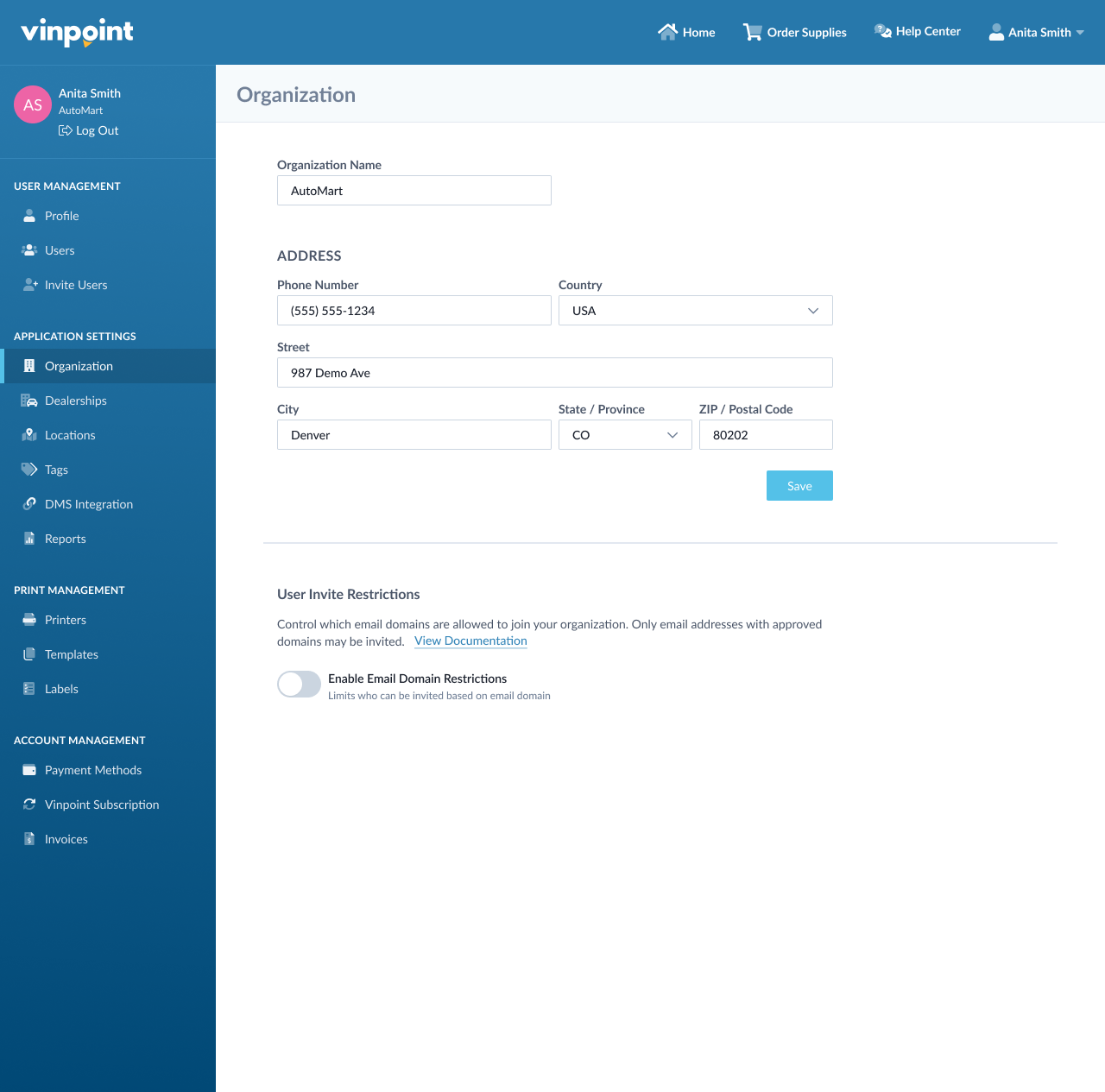
Toggle "Enable Email Domain Restrictions" to the ON position.
Enter an approved email domain in the text field (e.g., acmecorp.com).
Click "Add" to save the domain to your allowed list.
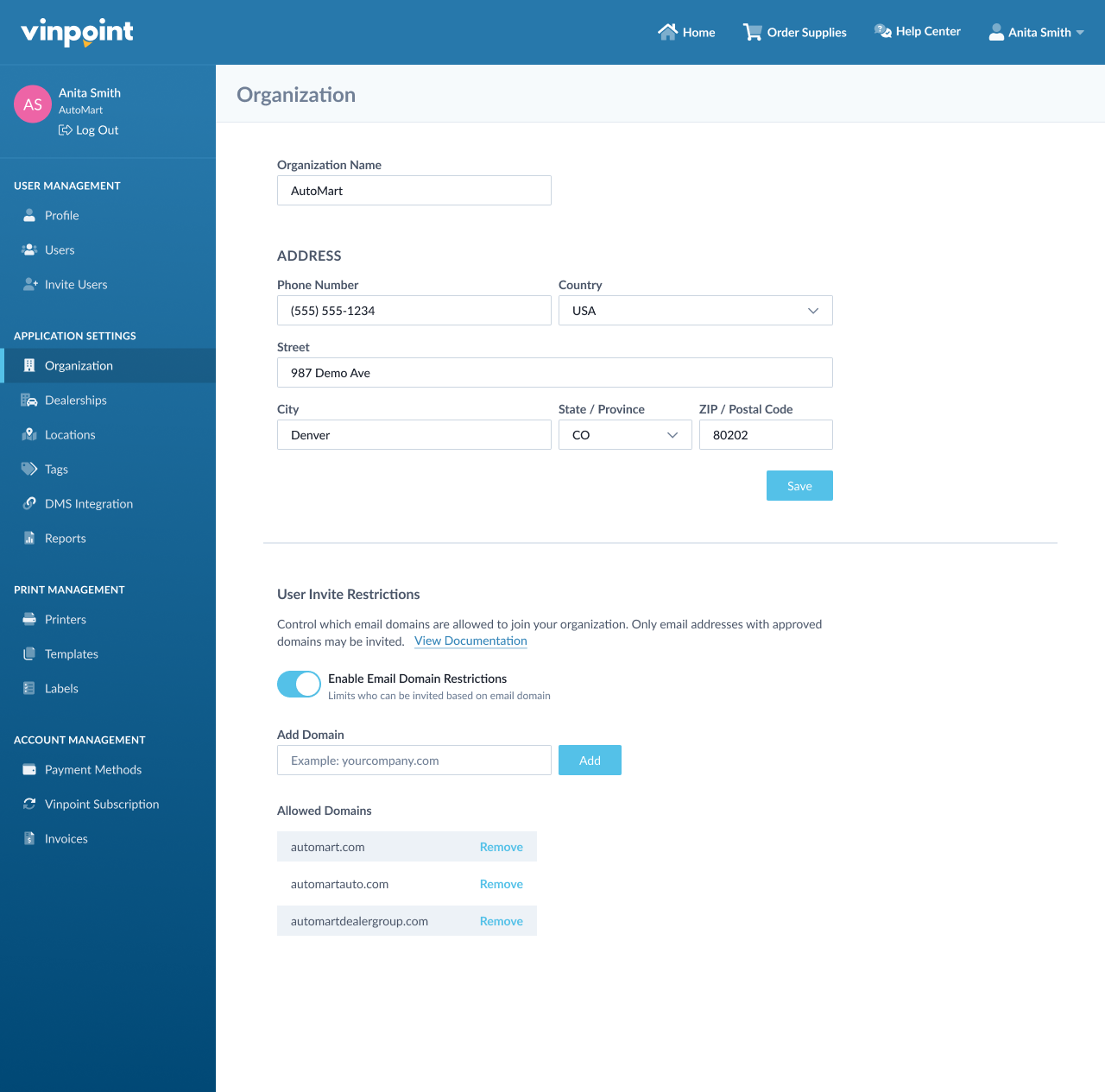
Repeat for each additional domain you want to allow.
Once enabled, only email addresses from your approved domains can be invited to your organization.
Example Use Case
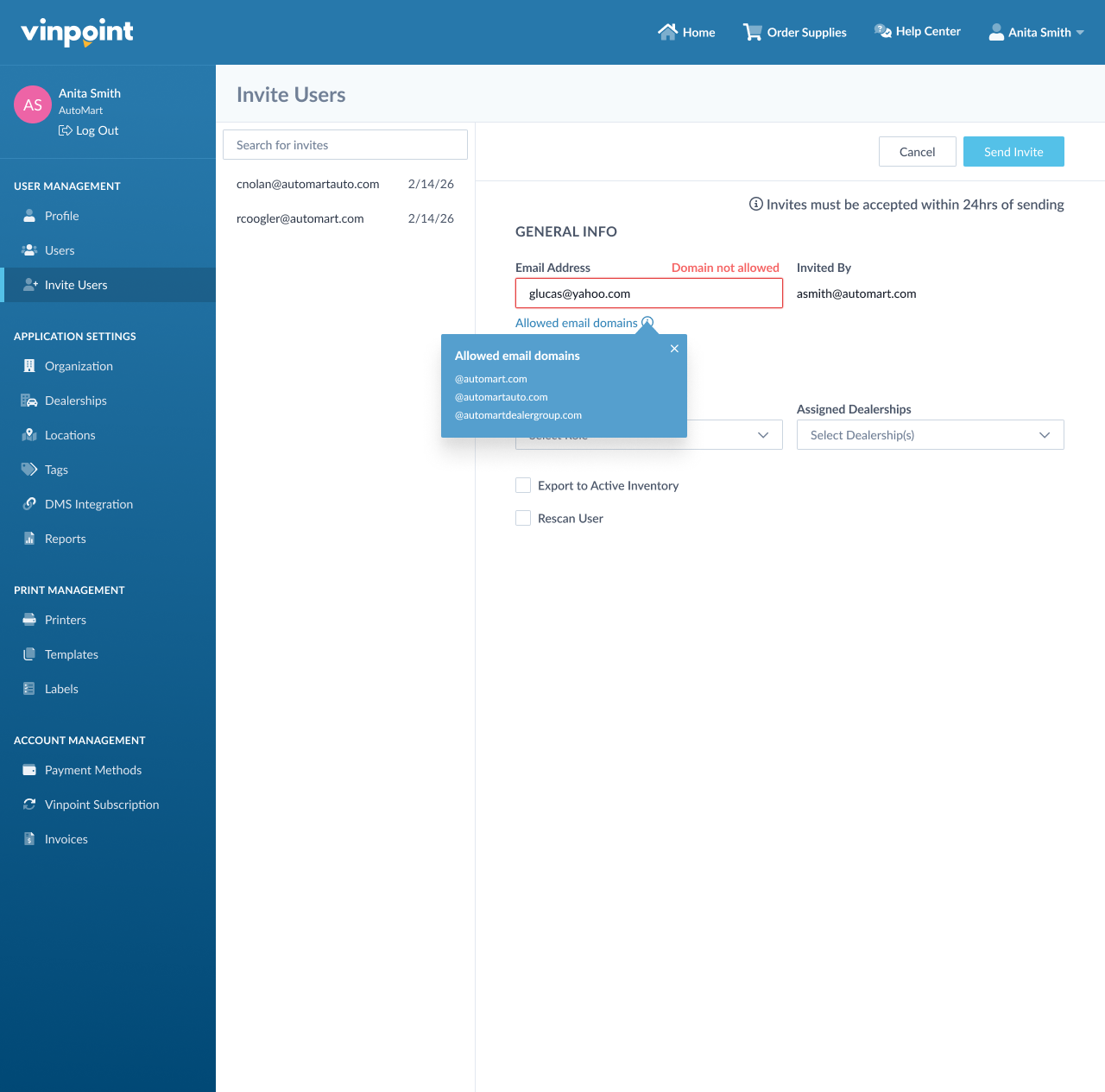
Scenario: Acme Corporation wants to ensure only employees with official company email addresses can access their Vinpoint workspace.
Setup:
- The admin enables Email Domain Restrictions
- They add
acmecorp.comto the allowed domains list - They also add
acme-consulting.com
Result:
- Users can invite:
john.smith@acmecorp.comorjane.doe@acme-consulting.com - Users cannot invite:
anita26@gmail.comorcontractor@othercompany.com
Managing Your Allowed Domains
To remove a domain from your allowed list, click "Remove" next to the domain name. Once removed, you will no longer be able to send invites to email addresses with that domain.
Note: Existing users with the removed domain will retain access to their accounts and can continue logging in. The restriction only applies to new invitations.
Recommended Workflow for Migrating User Emails to only Allowed Domains
Go to the Users page in administration.
Click the "Actions" button.
Select "Export User List."
Review the exported list to identify users with non-approved email domains.
Update each user's email address by either:
- Requesting that users update their own email addresses to approved domains
- Manually editing their user profile to use an allowed domain
SSO Organization
Note: If your organization uses Vinpoint's SSO (Single Sign-On) feature, you cannot manually enable or manage email domain restrictions from the organization page. Please contact CPH Support to enable or modify email domain restrictions for SSO-enabled organizations.
Was this article helpful?
That’s Great!
Thank you for your feedback
Sorry! We couldn't be helpful
Thank you for your feedback
Feedback sent
We appreciate your effort and will try to fix the article