TABLE OF CONTENTS
Overview
Security Photos lets you capture and manage up to six photos per vehicle or asset directly from the Vinpoint mobile app. Photos are stored with the asset and can include notes for additional context.
To use Security Photos, you'll need an active Security Photos subscription. If you don't see this feature on your account, see Managing your Vinpoint Subscription.
Getting Started with Security Photos
Open the Vinpoint app and navigate to the vehicle or asset you want to work with.
On the asset detail screen, scroll down to the Photos section and tap to expand it.
If no photos have been added yet, you'll see the message: You haven't taken any security photos yet. Tap Take Photo below to get started.
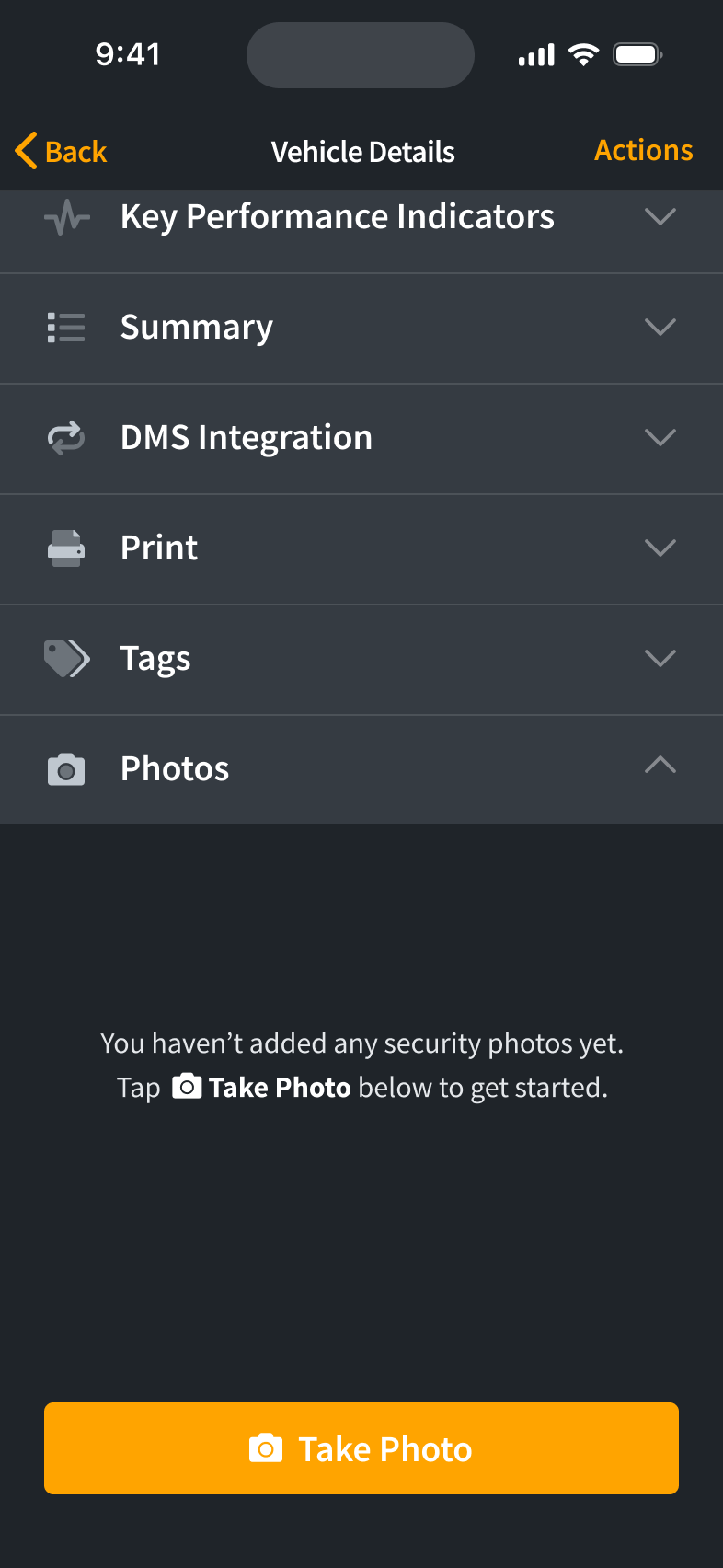
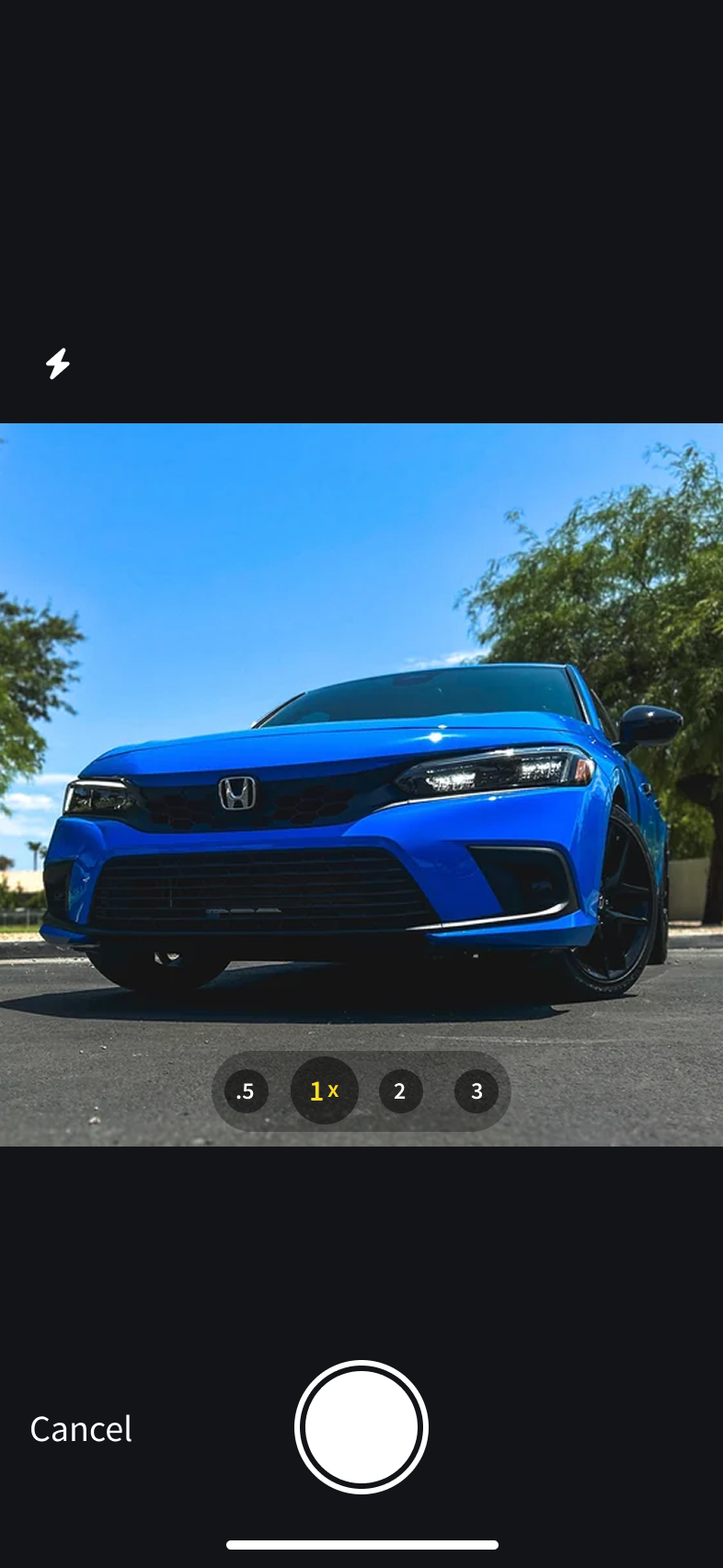
Tap Take Photo to open the camera. Tap the shutter button to capture your photo.
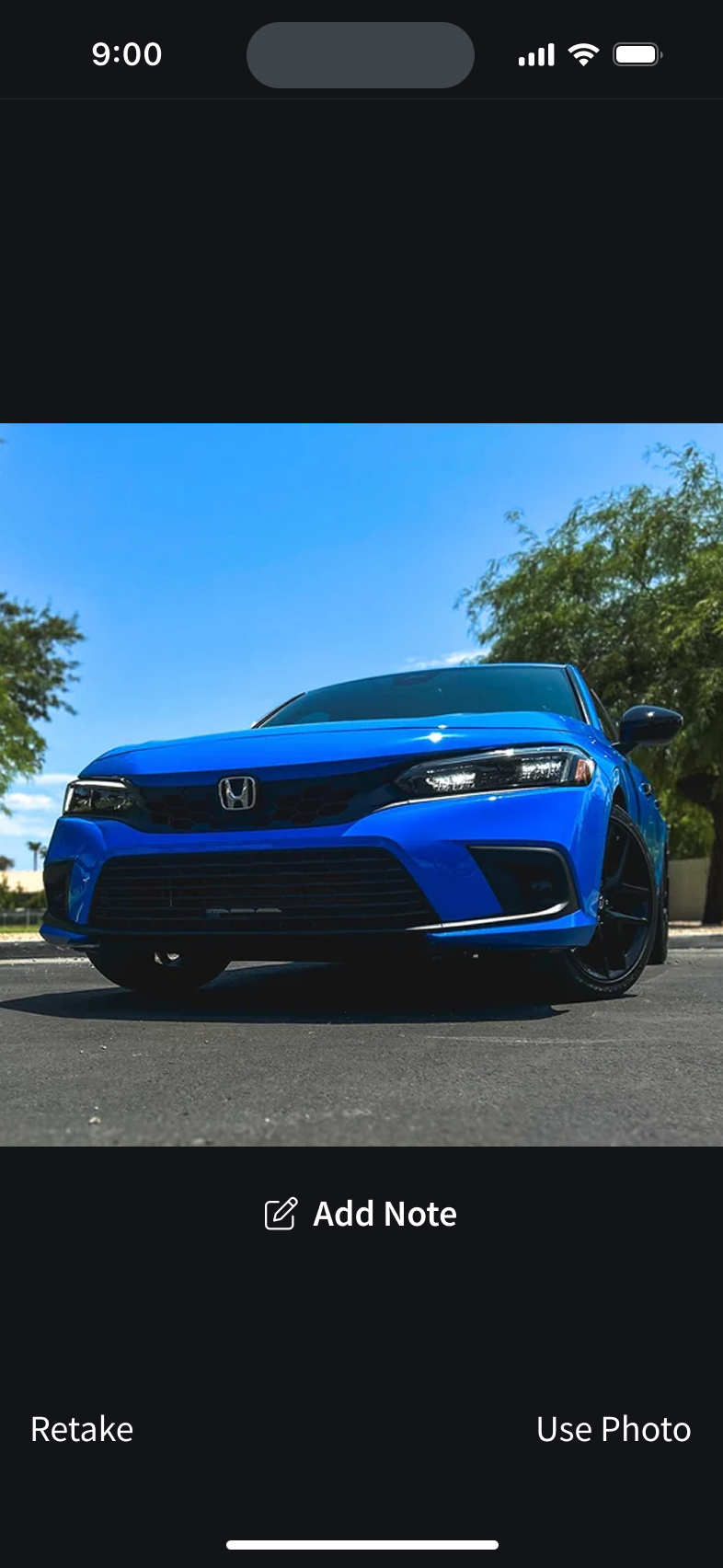
After taking the photo, you can review it before saving. From this screen you can:
Tap Use Photo to save the photo and continue.
Tap Add Note to attach a note to this photo before saving. Type your note, then tap Use Photo to save.
Tap Retake Photo to discard the image and try again.
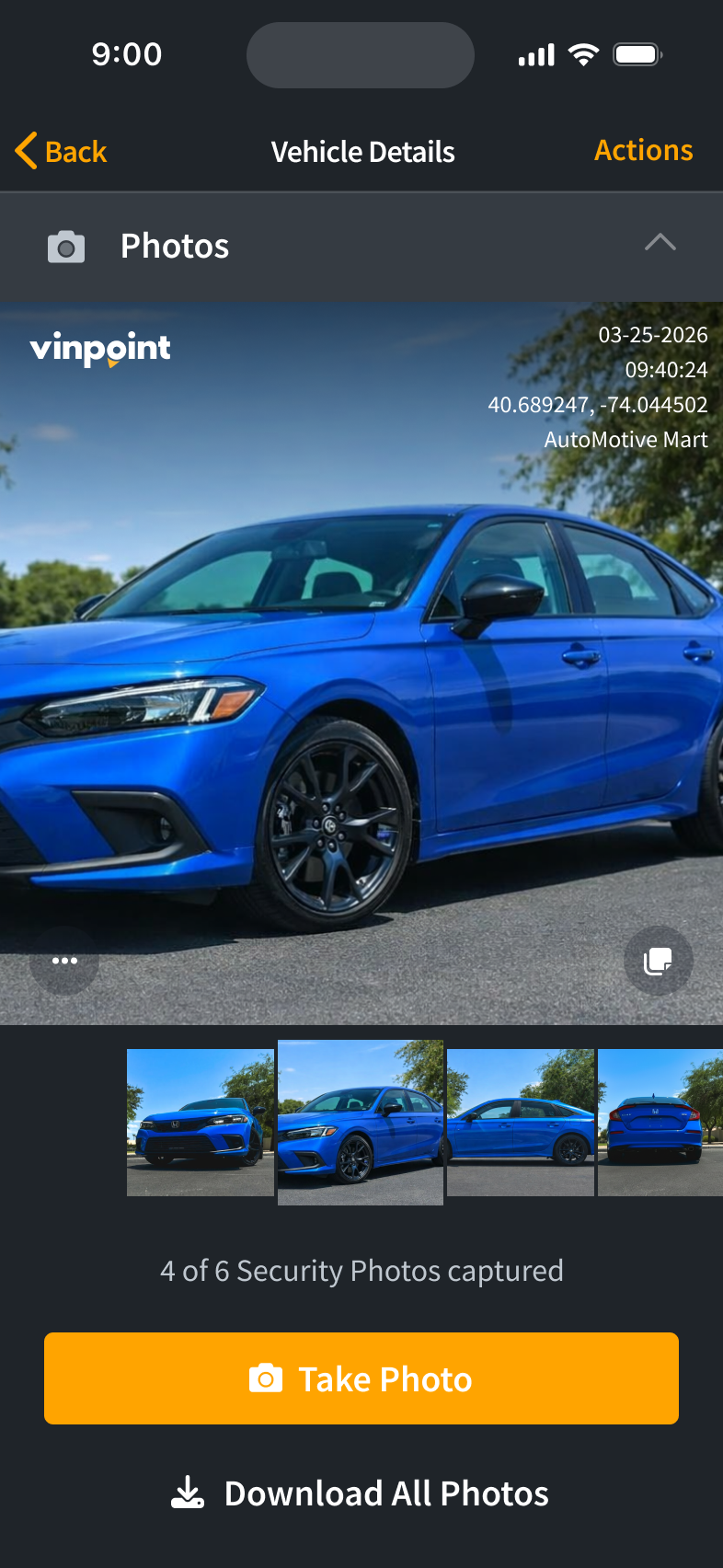
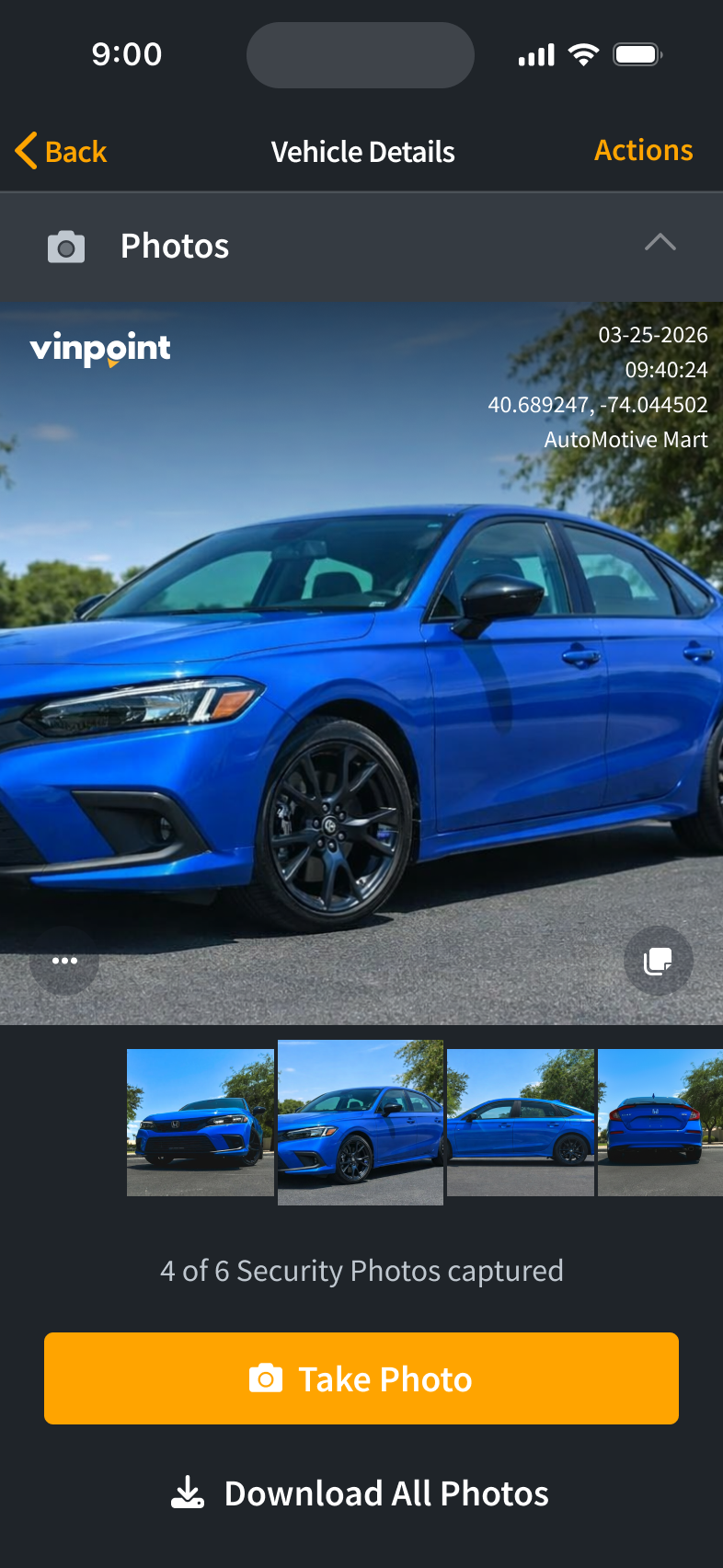
The photo will upload and appear in the Photos section of the asset. You can add up to 6 photos per asset. Tap Take Photo again to add more. To view your photos, swipe left or right, or tap a thumbnail to jump to a specific image.
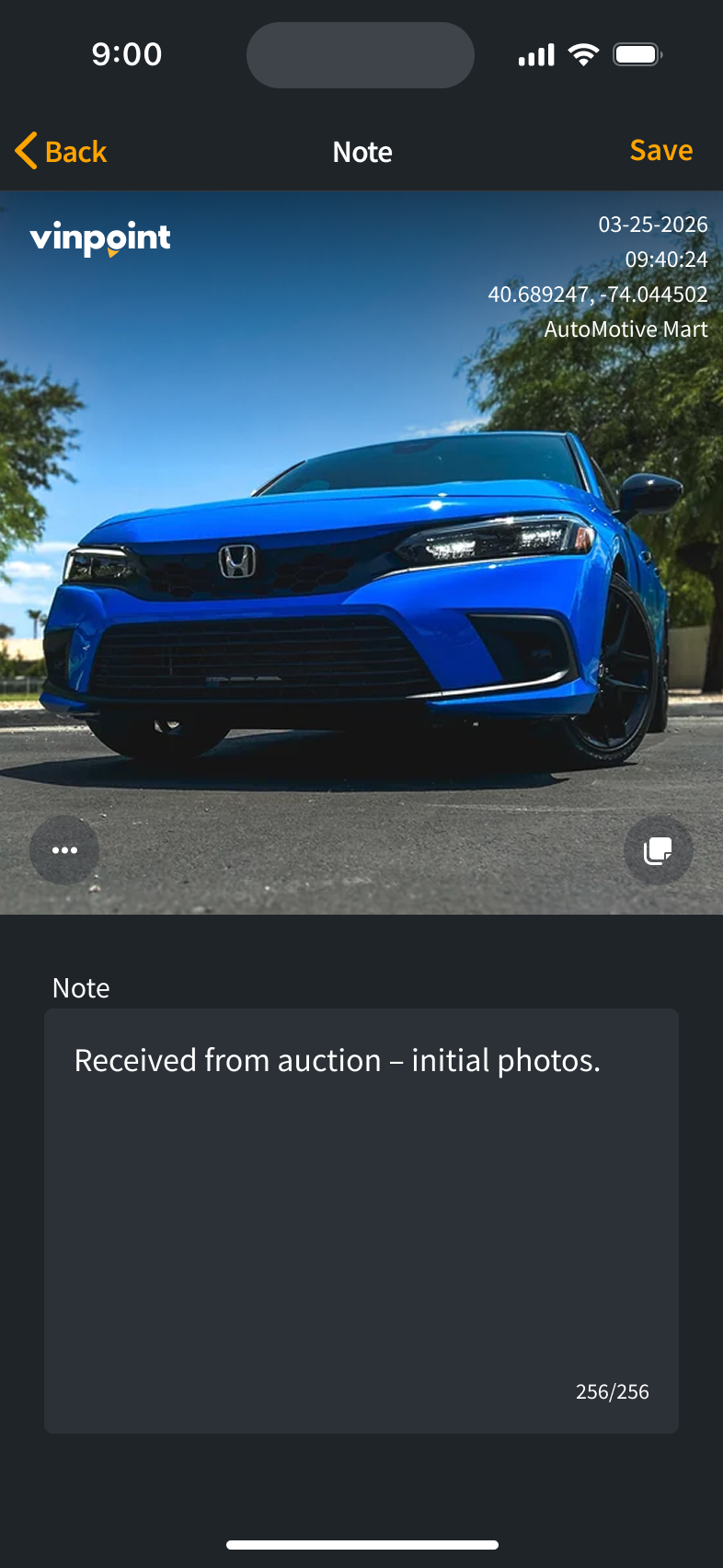
To view or add a note on a photo, tap the note icon in the bottom-right corner of the image. A text box will appear with any existing note. Tap the text box and begin typing to add or edit the note. The Save button will appear once you have entered or changed text. Tap Save when done.
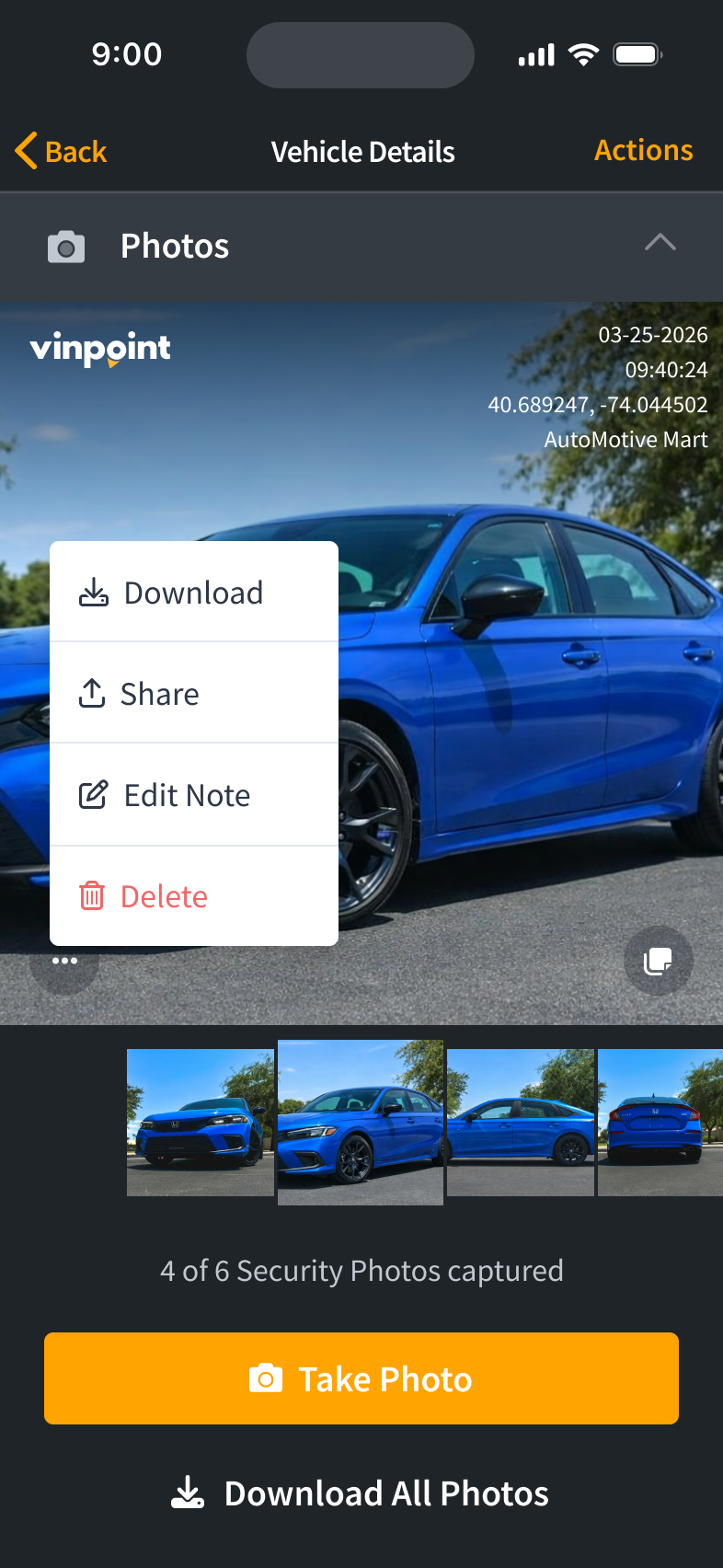
Tap the three dots (⋯) button overlaid on a photo to access photo actions.
- Download — Saves the photo to your device's photo library. If prompted, allow Vinpoint permission to save photos to your device.
- Share — Opens your device's share options, allowing you to send the photo via email, messaging, or other apps.
- Edit Note — Opens the note text box for this photo.
- Delete — Permanently removes the photo. A confirmation will appear. Tap Delete to confirm, or Cancel to go back.
Once you have added at least one photo, a Download All Photos button will appear below the photo viewer. Tap it to save all photos for the asset to your device's photo library. If prompted, allow Vinpoint permission to save photos to your device.
Related Articles
Was this article helpful?
That’s Great!
Thank you for your feedback
Sorry! We couldn't be helpful
Thank you for your feedback
Feedback sent
We appreciate your effort and will try to fix the article