TABLE OF CONTENTS
What's changed
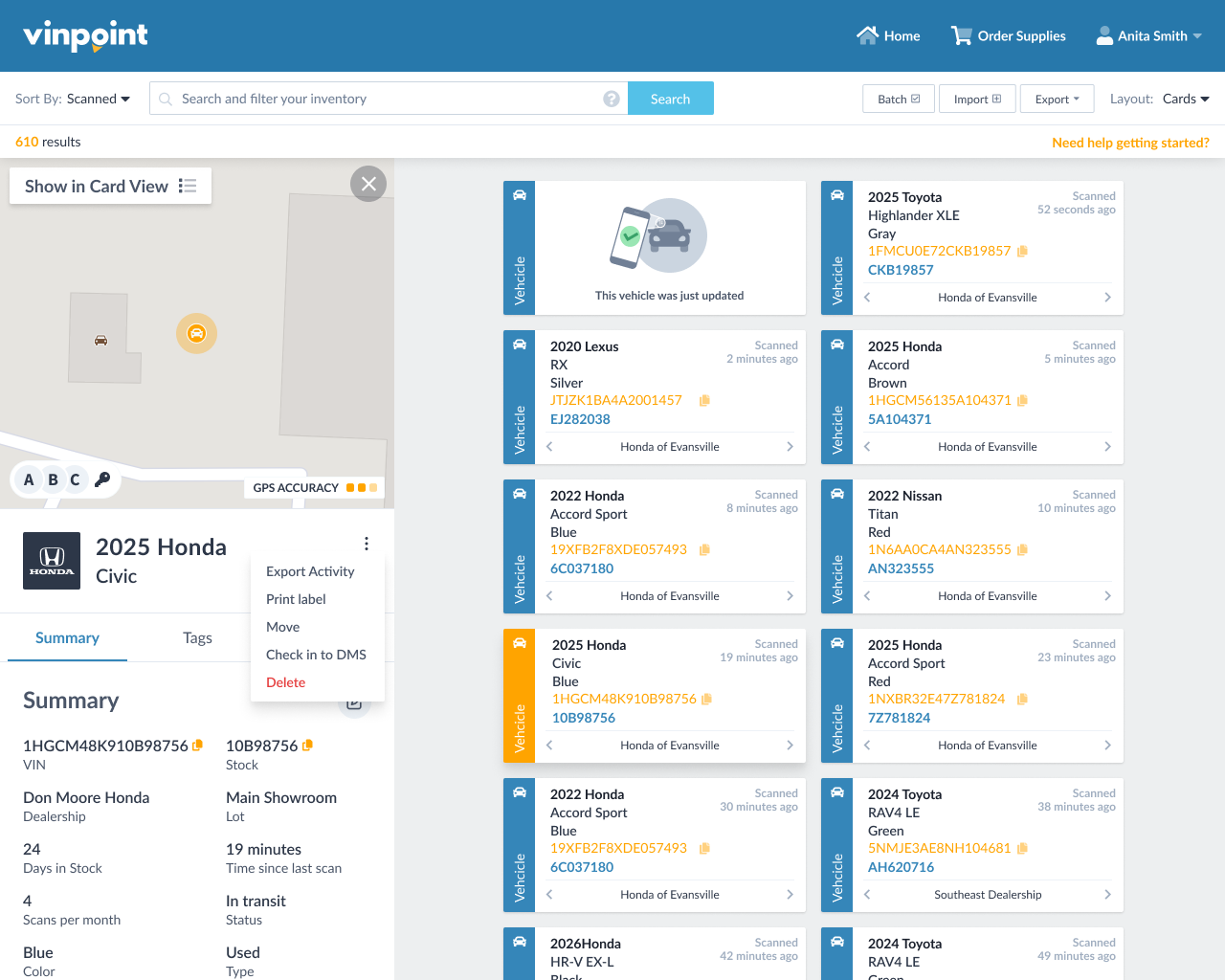
Everything is now split into tabs so you can jump straight to what you need. Common actions are now available in the Actions menu, including Print label, Move, Delete, and DMS-related options.
Map and Actions menu
At the top of the panel, you'll see a map showing where the vehicle was last scanned. Click Show on large map to view this vehicle on the full inventory map. Click Show on card view to return.
Below the map, the vehicle or asset information is listed. Clicking the Actions menu, you'll find options like Export activity, Print label, Move, and Delete, plus DMS-related options that vary by vehicle.
Summary tab
The Summary tab lists all attributes associated with the vehicle or asset. To edit any of these, click the edit icon. A pop-up opens showing every attribute, populated or not, where you can update or set values and save.
Photos tab
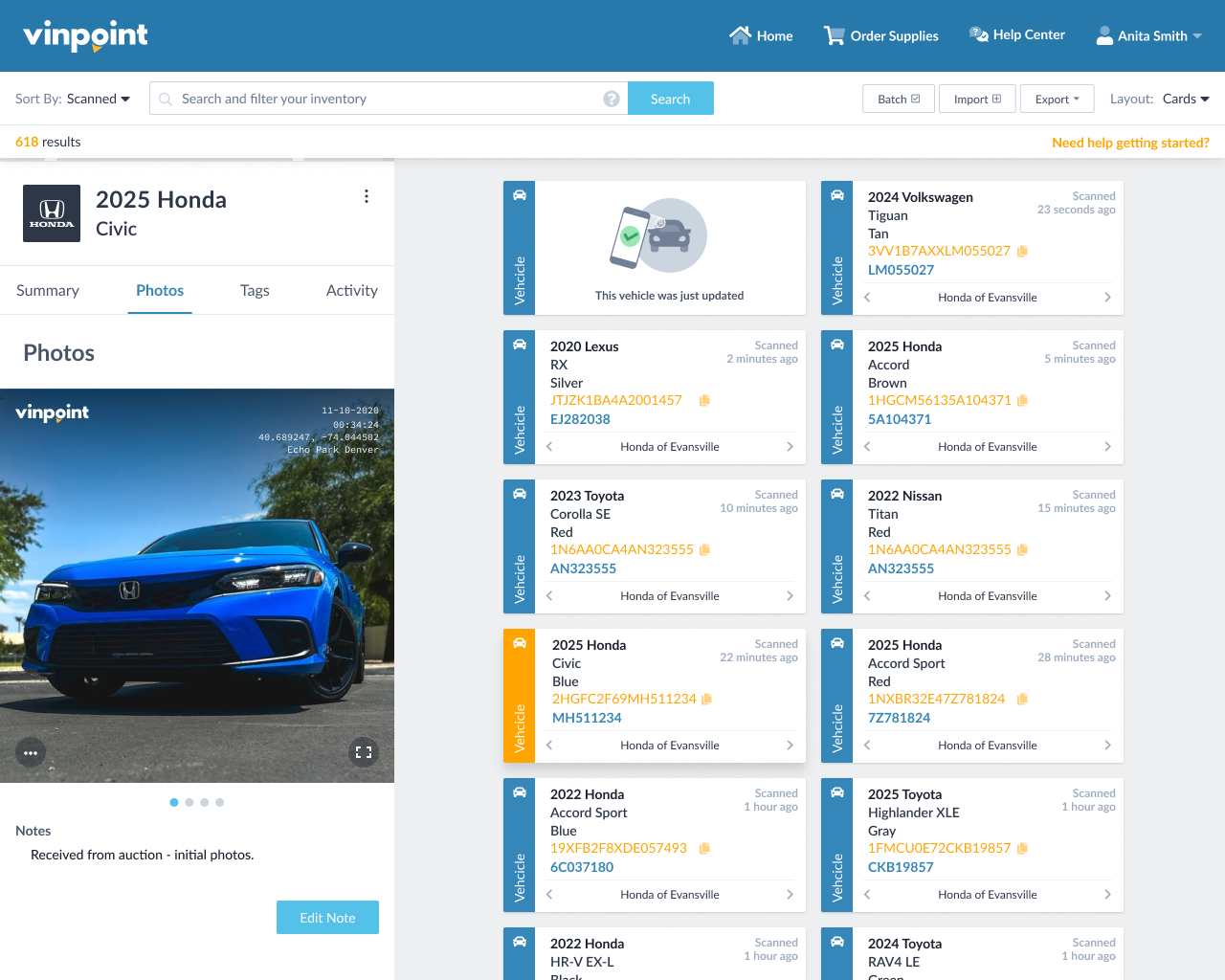
Note: You will only have the Photos tab if you've purchased the Security Photos add-on for your Vinpoint subscription. If you'd like to add this feature, manage your subscription.
The Photos tab is where vehicle photos live. You can browse through the gallery, view comments on each photo, and open any photo in a larger view.
Tags tab
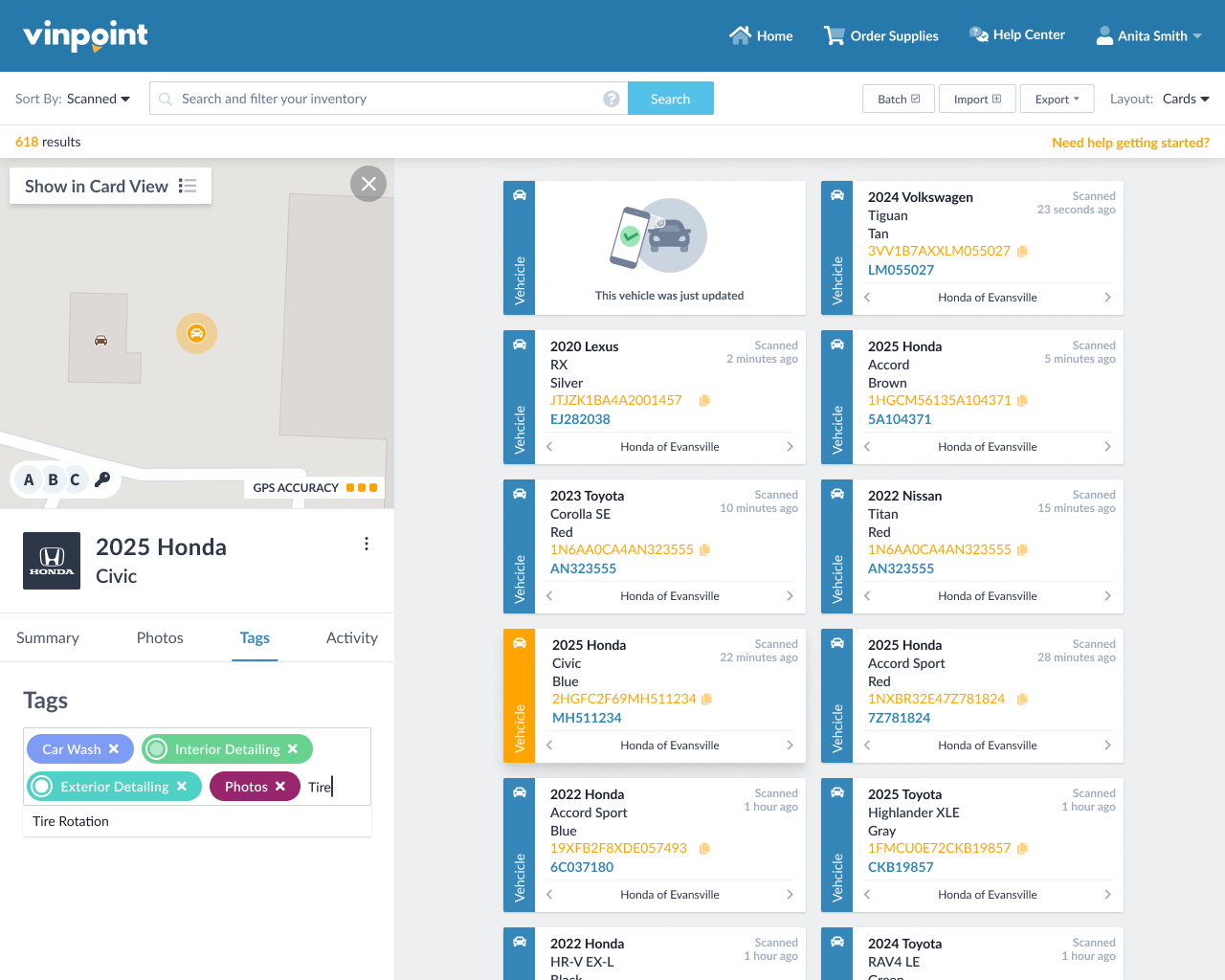
The Tags tab shows tags applied to the vehicle. From here you can add new tags, remove existing ones, and edit what's there.
Activity tab
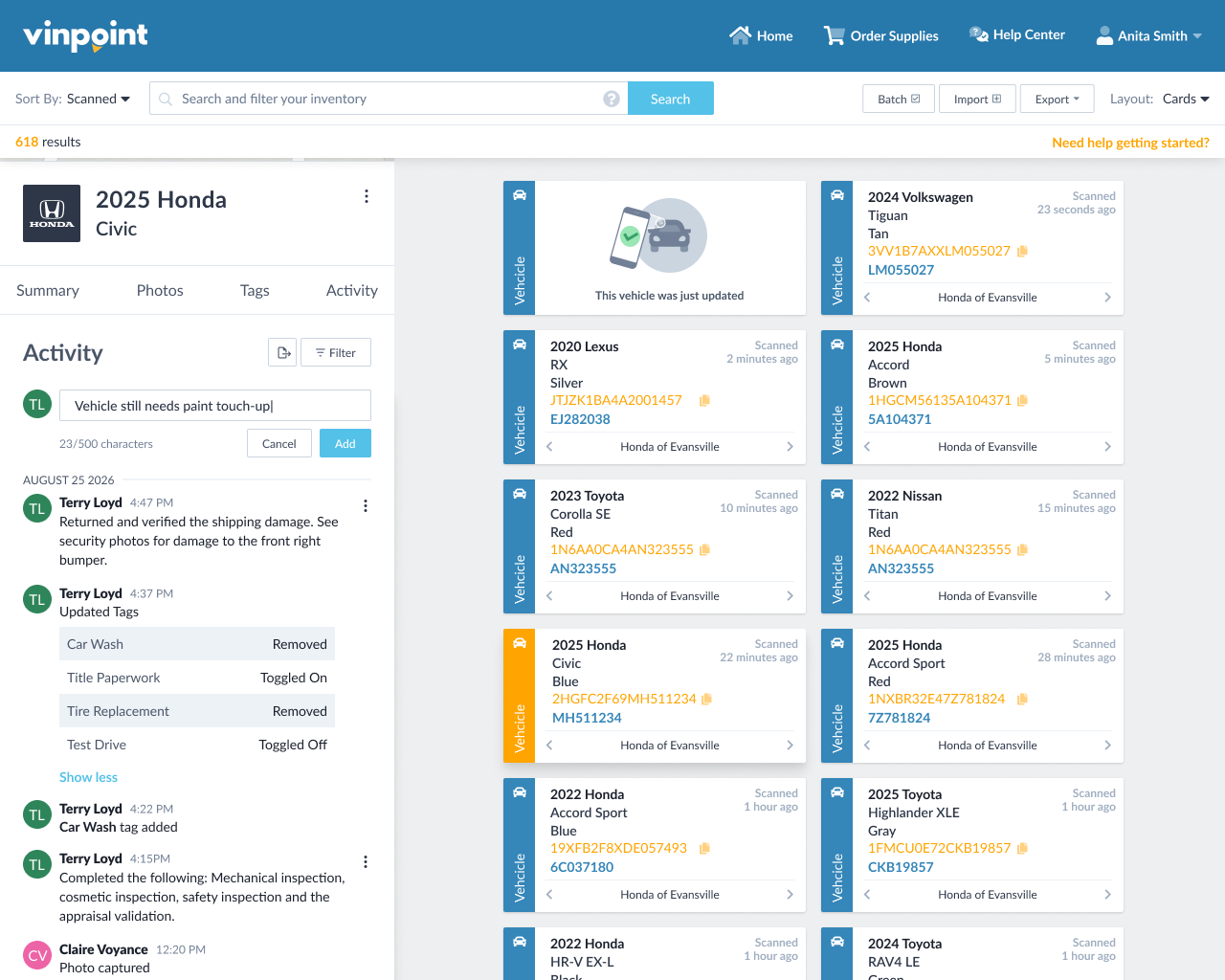
The Activity tab is a journal of everything that has happened to this vehicle in Vinpoint: edits, location changes, and more. Each event appears in chronological order.
From this tab, you can also:
Add a comment. Use the comment box at the top of the activity feed to add a comment to the vehicle's history. Once added, click the menu icon on the right of the comment to edit or delete it.
Export activity. Click Export activity to download a CSV of the vehicle's activity. This is also available from the Actions menu.
Filter the feed. Click Filter to narrow the activity feed by time range or activity type.
Was this article helpful?
That’s Great!
Thank you for your feedback
Sorry! We couldn't be helpful
Thank you for your feedback
Feedback sent
We appreciate your effort and will try to fix the article