TABLE OF CONTENTS
Getting Started with Security Photos
Start by clicking the asset you want to view. Once the asset is selected, the card will turn orange and the asset details panel will open from the left side.
Go to the Photos tab in the asset details panel to view that asset's security photos.
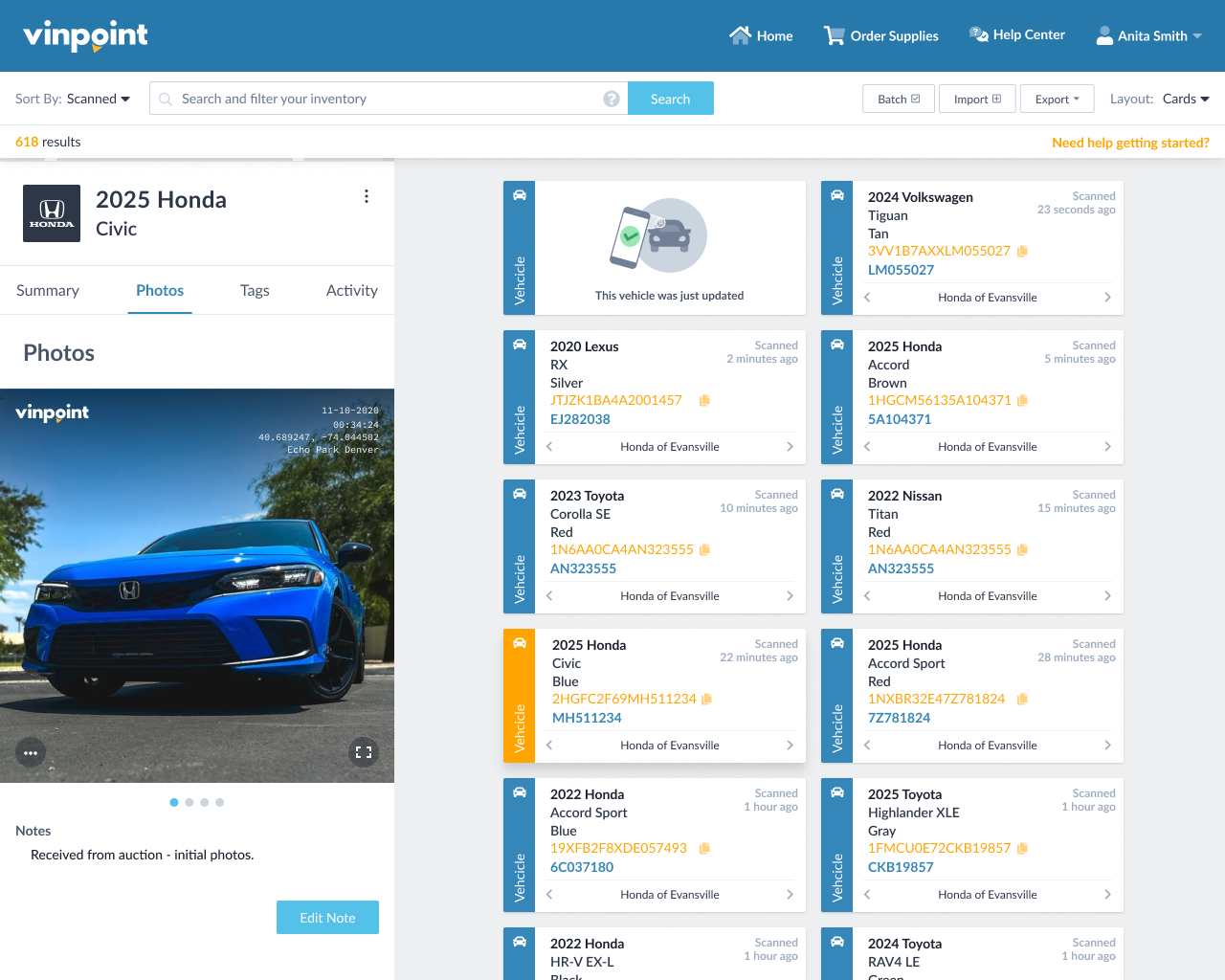
Note: If no security photos have been added for this asset, you’ll see the message: “You haven’t added any security photos yet. Use the mobile app to capture photos.” See Security Photos in Vinpoint Mobile.
From here you can:
- Use the left and right arrows to scroll through all available photos.
- Click the expand button to view photos in a larger format and navigate between them.
- Add or edit notes for each security photo as needed.
- Download a single photo or download all photos associated with the asset.
- Delete photos if you have the appropriate permissions (all users except read-only users).
You can view all security photo activity in the activity feed, where actions are automatically recorded.
Related Articles
Was this article helpful?
That’s Great!
Thank you for your feedback
Sorry! We couldn't be helpful
Thank you for your feedback
Feedback sent
We appreciate your effort and will try to fix the article