TABLE OF CONTENTS
Overview
Multi-Field Scan is available in the Vinpoint iOS and Android app for asset-enabled dealerships only. This feature lets you capture an image that includes Asset ID, Year, Stock, Make, and Model and populate the relevant fields, no typing required.
Getting Started
Scan an unused ICQR label to initiate the pairing process.
You should see a screen that says, "You've scanned an unpaired ICQR label, would you like to pair it with your asset now?"
Once you tap "Pair label" you'll arrive at a screen prompting you to enter an Asset ID or use Asset Info Scanner Modes. Tap "Scan Asset Info" to use the Multi-field Scan.
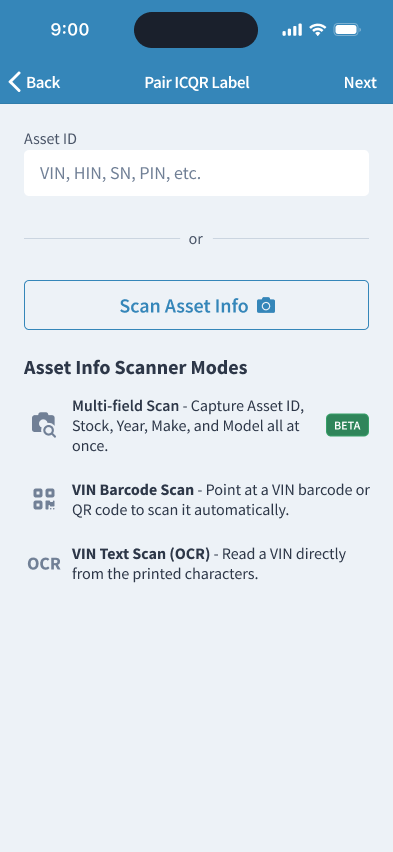
Choosing a Scan Mode
Once in scan mode, use the tab bar at the bottom of the screen to switch between the three available modes: Multi-Field Scan (camera icon), VIN Barcode Scan (QR code icon) and VIN Text Scan (OCR). Tap the camera icon to enter Multi-Field Scan mode.
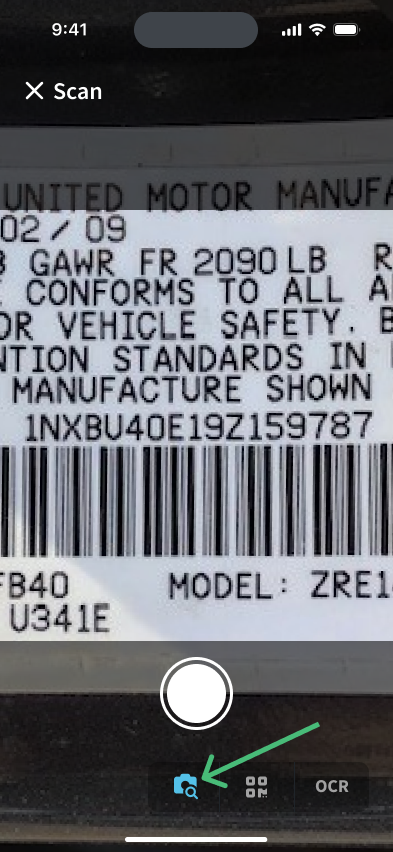
Capturing the Image
Position the camera over the asset data you want to capture and tap the capture button (the large circle at the bottom of the screen) to capture the image. Asset ID is required, but you can also capture Year, Stock, Make, and Model in the same image.
Selecting Values
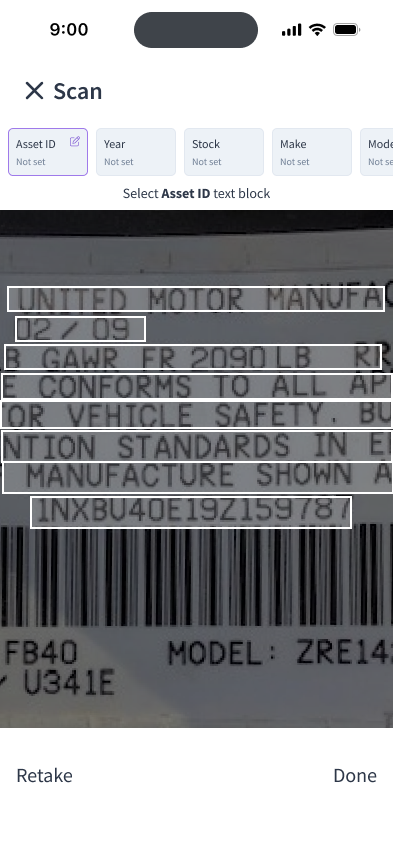
After capturing your image, the app will detect and highlight readable text blocks with a white border directly on the image. At the top of the screen, you'll see a field bar showing Asset ID, Year, Stock, Make, and Model.
When the image is captured, Asset ID is automatically selected as the starting field, tap the text block in the image that contains the Asset ID value. Note: The active field is highlighted at the top, and a prompt beneath it tells you which field you're currently filling (e.g. "Select Asset ID text block").
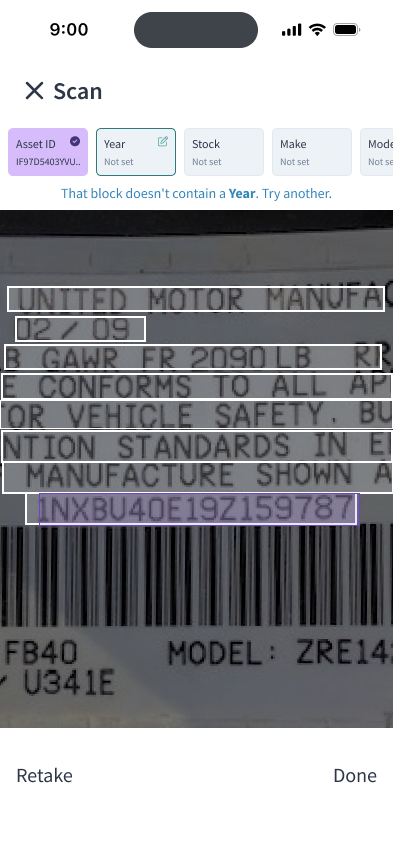
Note: If you tap a text block that doesn't contain a valid year when the Year field is active, the app will display "That block doesn't contain a Year. Try another." Simply tap a different text block to continue.
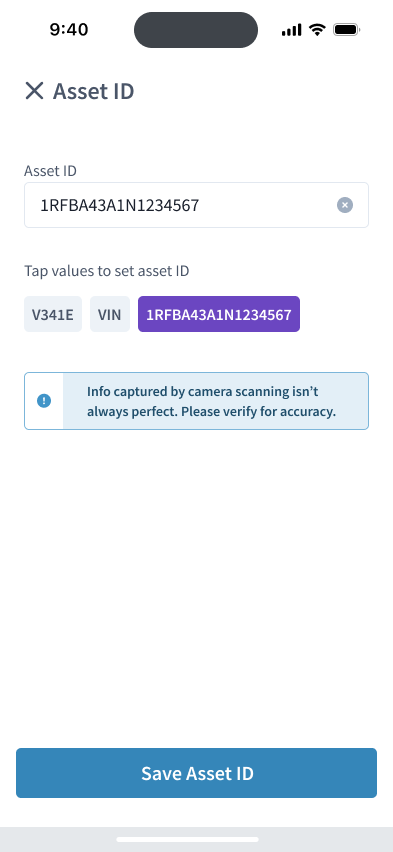
After tapping a text block, a field builder screen will appear showing the detected value(s) for that field. You can also type directly into the field, or edit it after tapping a detected value.
- If only one value is detected, the field is automatically populated, simply tap "Save" to confirm it.
- If multiple values are detected, tap the correct one to populate the field, then tap "Save."
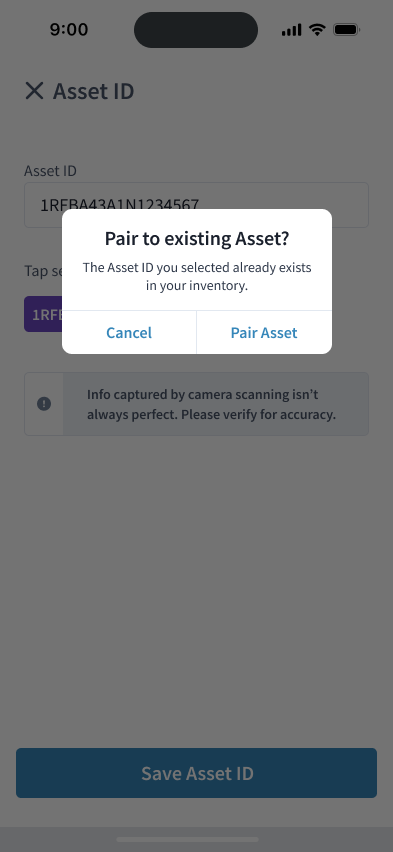
Note: If Asset ID matches an asset previously imported through Import Inventory on Vinpoint Web, the app will display "The Asset ID you selected already exists in your inventory." At this point you can either Pair Asset or Cancel. Field values cannot be edited here as they were set during the import process.
Once saved, the app will automatically advance to the next field or tap any field in the bar at the top to jump to a specific one. Repeat for any remaining fields you want to fill, then tap Done.
Was this article helpful?
That’s Great!
Thank you for your feedback
Sorry! We couldn't be helpful
Thank you for your feedback
Feedback sent
We appreciate your effort and will try to fix the article