TABLE OF CONTENTS
Search lets you find a specific vehicle or browse the vehicles currently in your inventory at the dealership you're checked in to. Use filters to narrow your search and quickly find the vehicles you're looking for.
What's changed: This updated search screen separates two ways of searching. The search bar handles single lookups by VIN, stock number, or asset ID, and the filters below it let you browse your inventory by make, model, year, tag, and more.
Getting to search
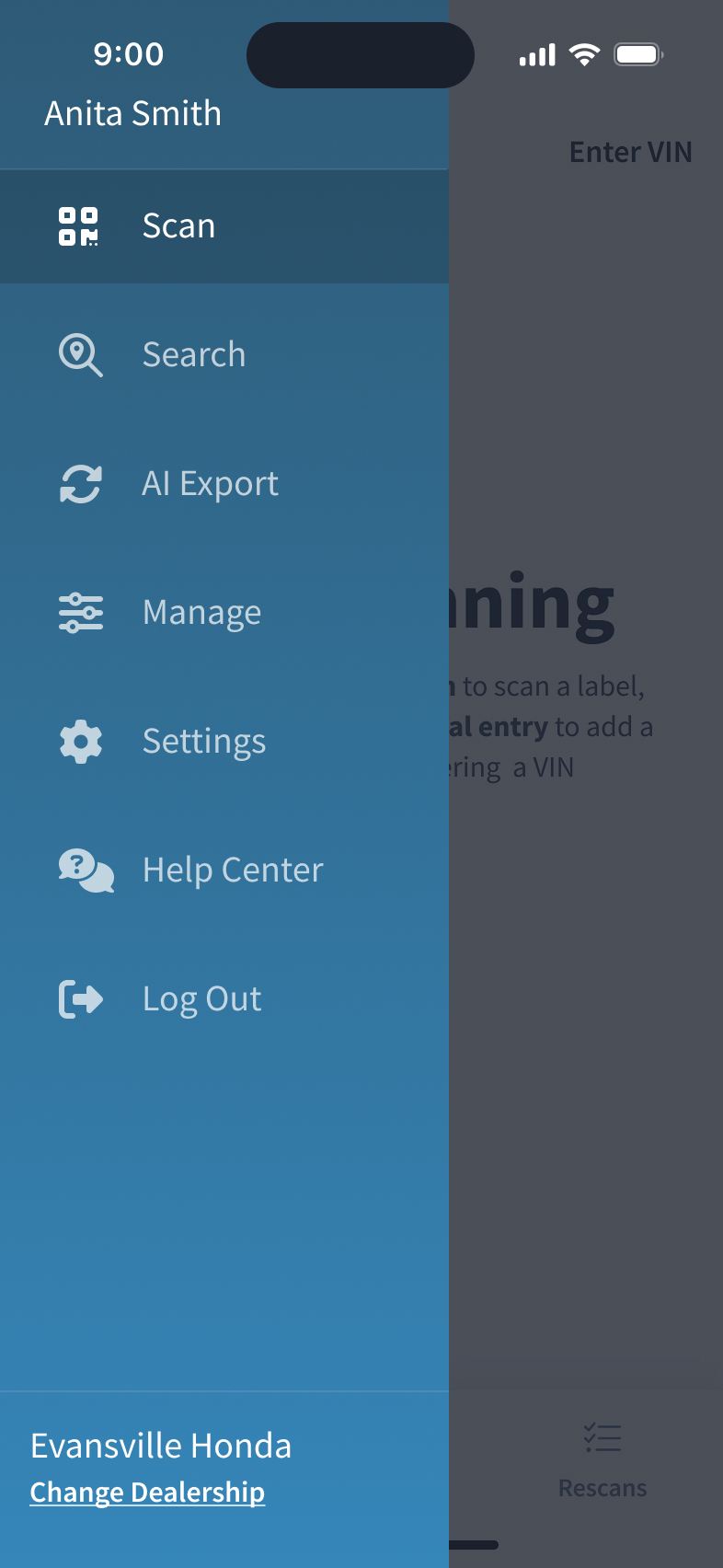
Tap the menu icon in the top left of your screen to open the side menu. Search is the second item from the top, marked with a magnifying glass.
Finding a single vehicle or asset
Tap the search bar to look up one specific vehicle or asset. You can search by VIN or stock number, and if your dealership tracks assets beyond vehicles, you can also search by asset ID.
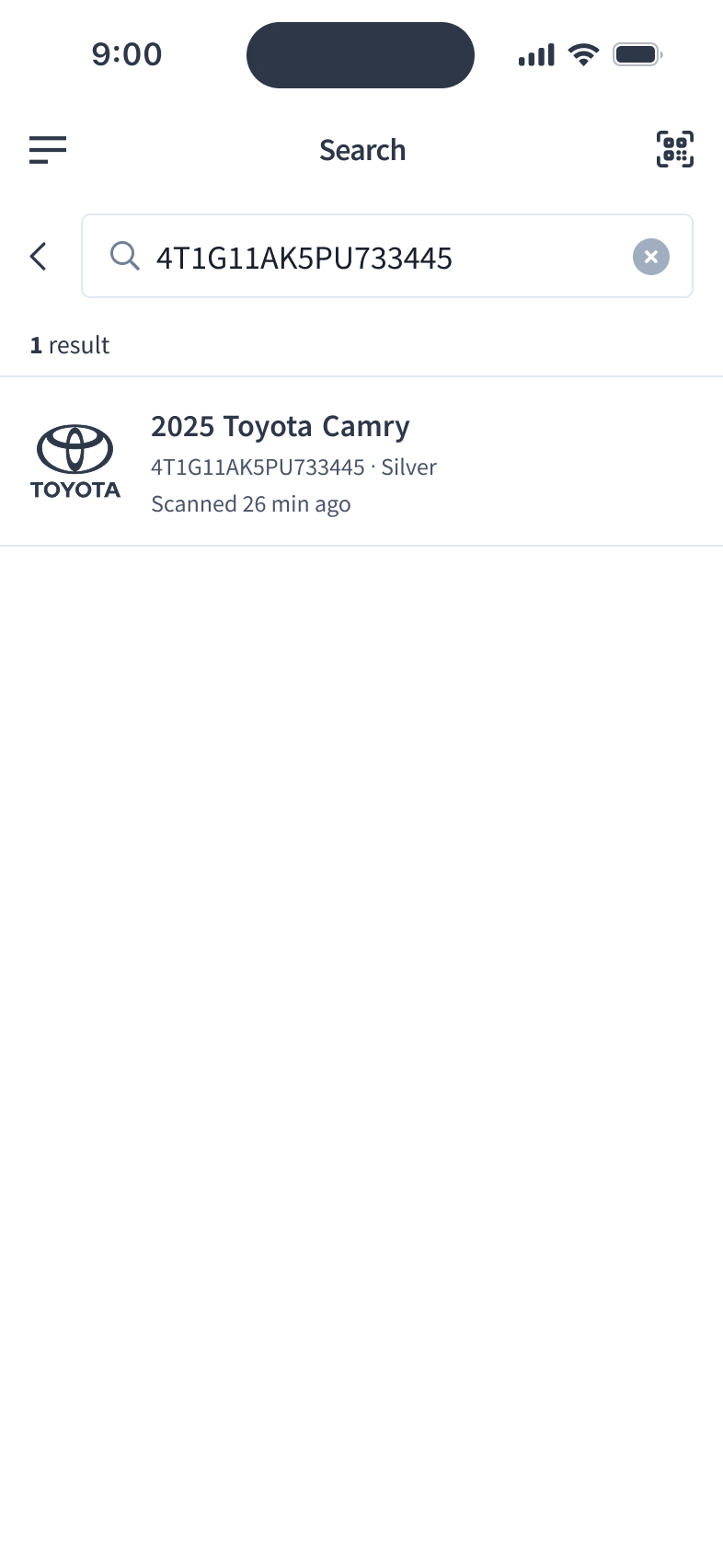
Enter a complete VIN, stock number, or asset ID. The search runs once you've entered a full ID, and your results appear below. Tap a result to open its details.
Partial IDs won't return results, and the search bar doesn't accept make, model, or other vehicle details. To browse by those, use the filters on the main search screen. If a search comes back empty, check that you've entered the ID correctly, then confirm the vehicle is still in inventory and at the dealership you're checked in to.
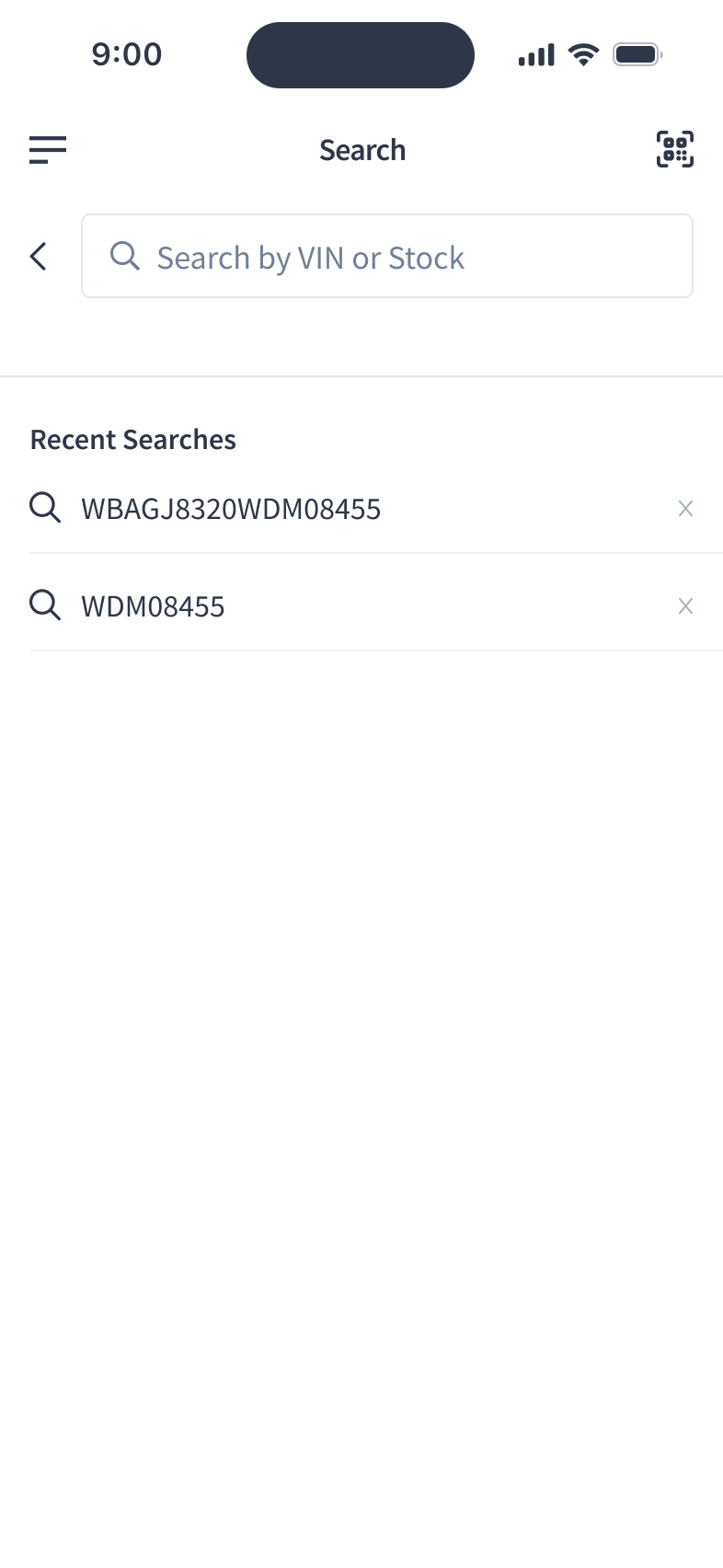
To run another search, clear the search bar and enter a new ID. Below the search bar you'll see Recent Searches, a list of the searches you've run previously. Tap any entry to run the search again, or tap the X to the right of an entry to remove it from the list.
To leave the search bar and return to the main search screen, tap the back arrow.
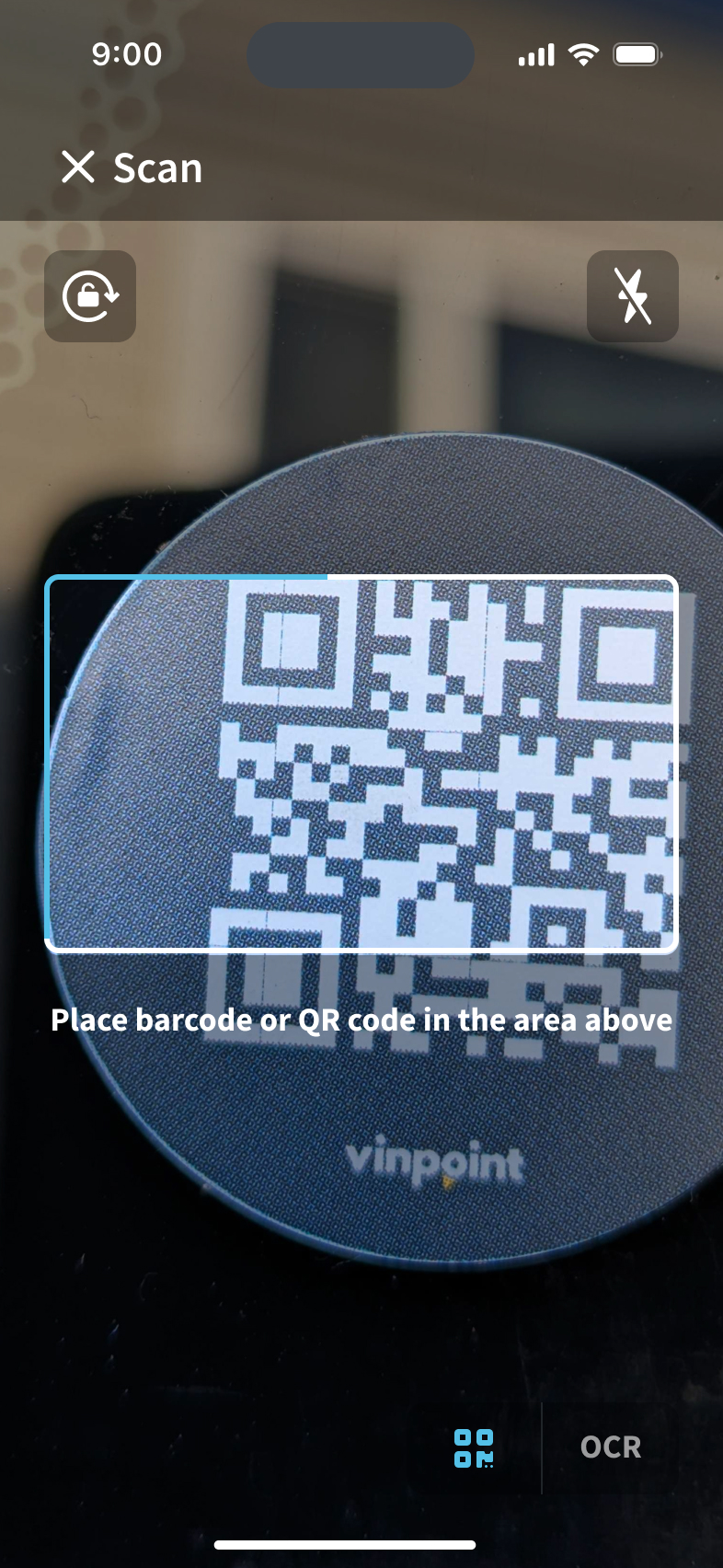
You can also scan instead of typing. Tap the scan icon in the top right of the search screen to open the camera view. From there you can scan a VIN barcode, an ICQR label, or point the camera at a VIN and Vinpoint will read the characters for you.
Browsing and filtering your inventory
The filters on the main search screen let you narrow your inventory instead of looking for one specific vehicle.
Each filter panel shows only the options that exist in your inventory.
Inside a filter panel, check the options you want and tap See Results. Clear Selected clears your checkmarks so you can start over, and Cancel closes the panel without applying anything.
To remove a single filter without clearing the rest, reopen its panel, tap Clear Selected, then tap See Results.
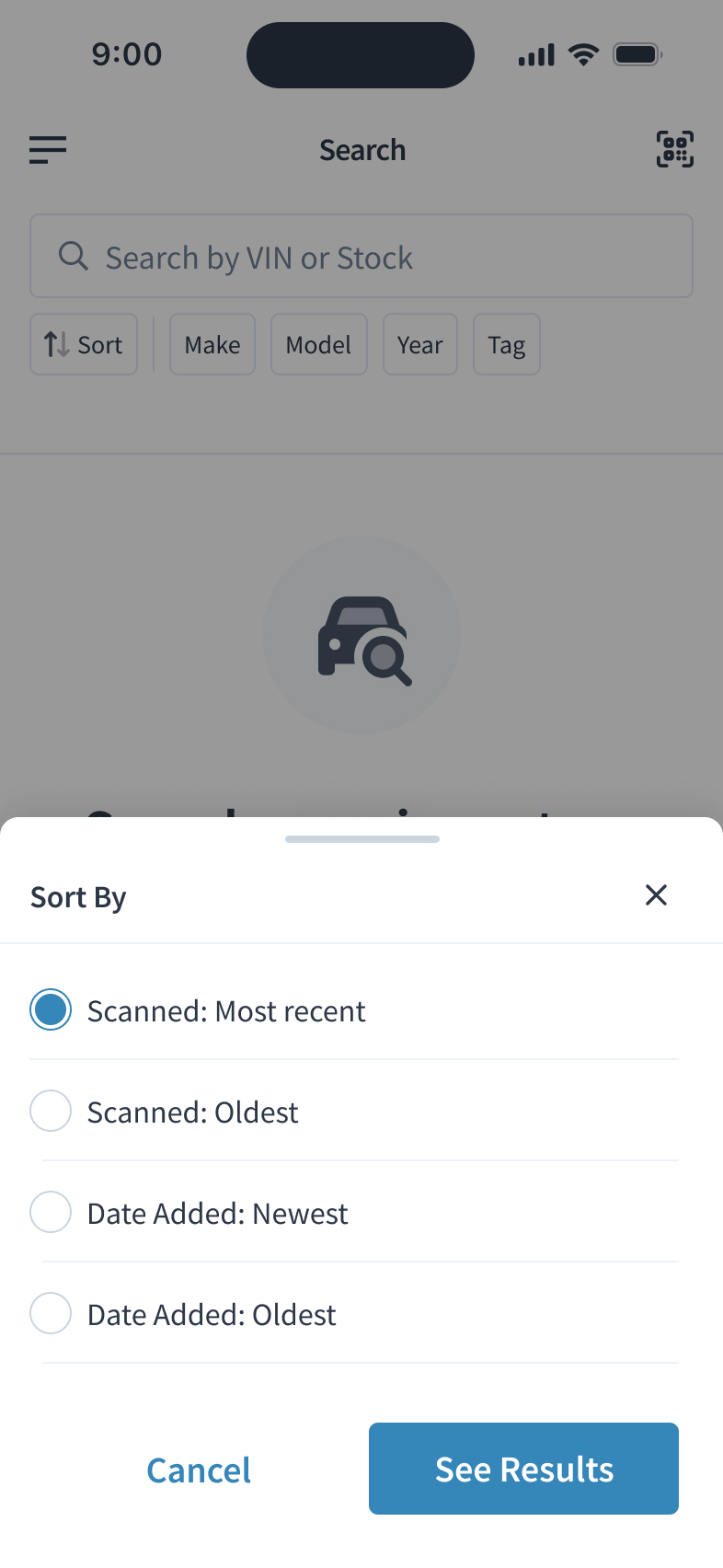
The available sorting options are:
- Scanned - most recent
- Scanned - oldest
- Date added - newest
- Date added - oldest
The available filters are:
- Make
- Model
- Year
- Tag
- Asset Type, for dealerships that track assets beyond vehicles
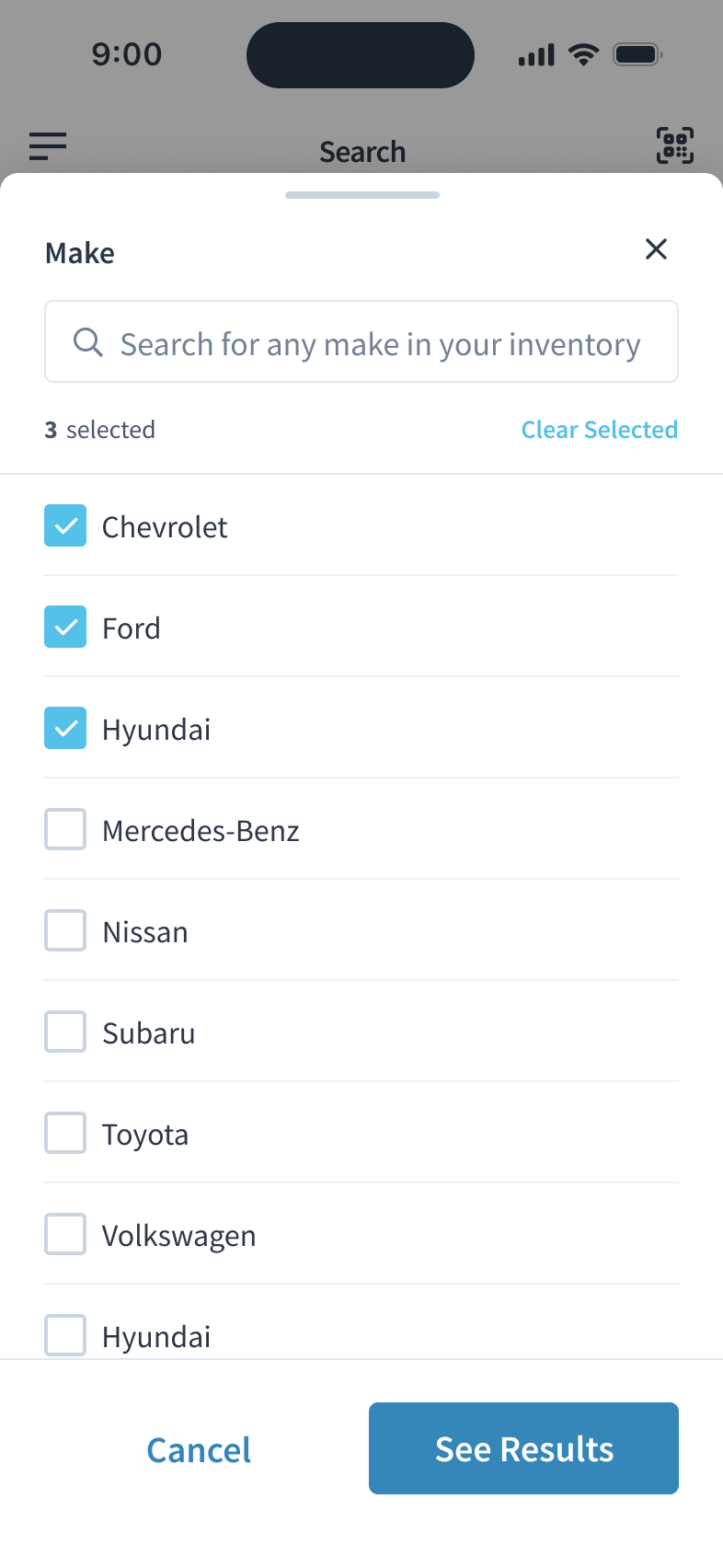
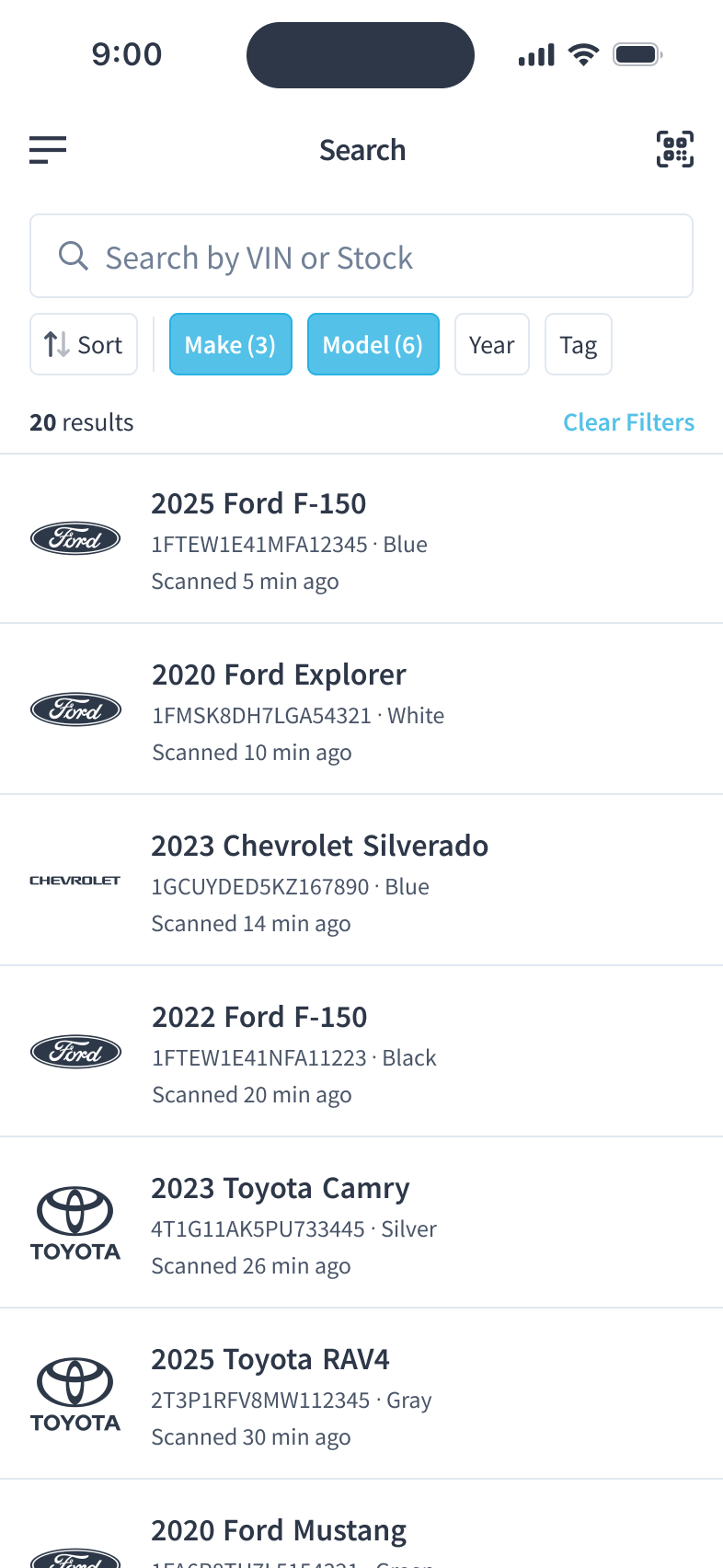
You can apply one filter or combine several. Your results appear below the filters, and tapping any result opens its details. Tap the back arrow from a result to return to your filtered list.
When filters are applied, Clear Filters appears on the search screen. Tap it to remove all filters at once. Your sort order stays as you set it.
Please note: if your dealership tracks assets beyond vehicles, the Asset Type filter lets you narrow by category, such as ATVs, boats, RVs, and vehicles. You'll also see wording throughout search that refers to assets rather than vehicles.
Was this article helpful?
That’s Great!
Thank you for your feedback
Sorry! We couldn't be helpful
Thank you for your feedback
Feedback sent
We appreciate your effort and will try to fix the article