Peel and stick the ICQR label onto the vehicle.
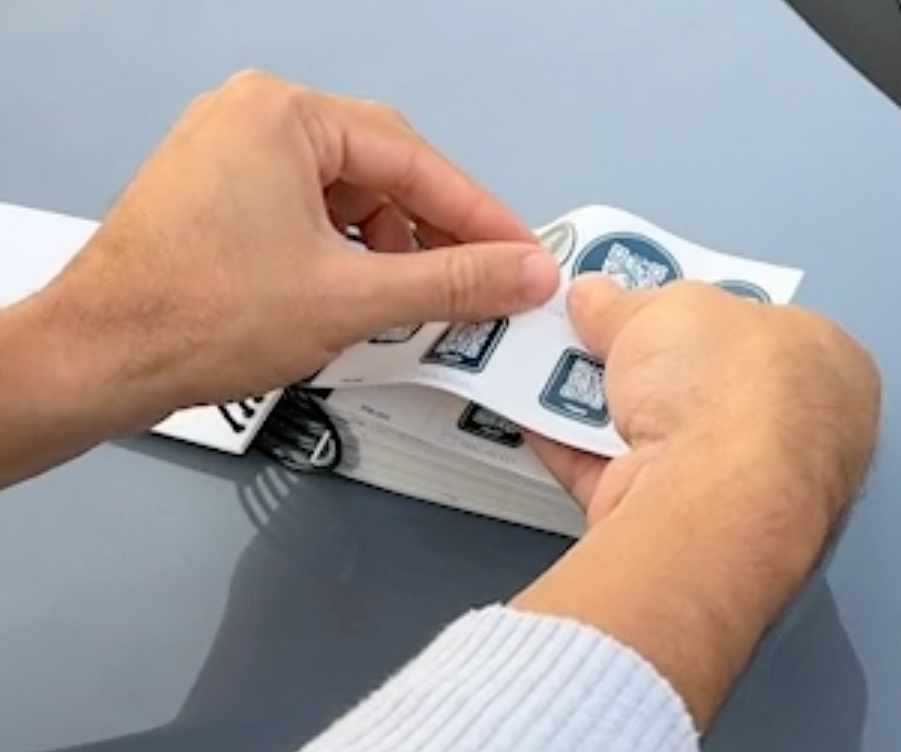
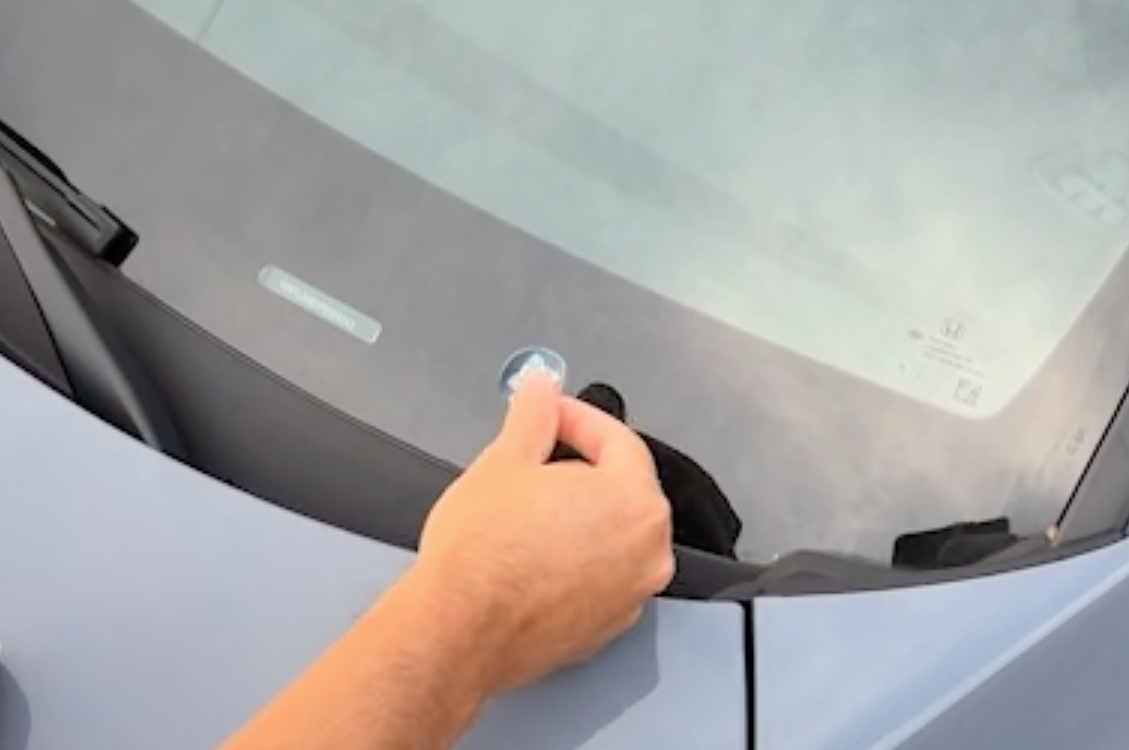
Open the Vinpoint app to scan the ICQR label.
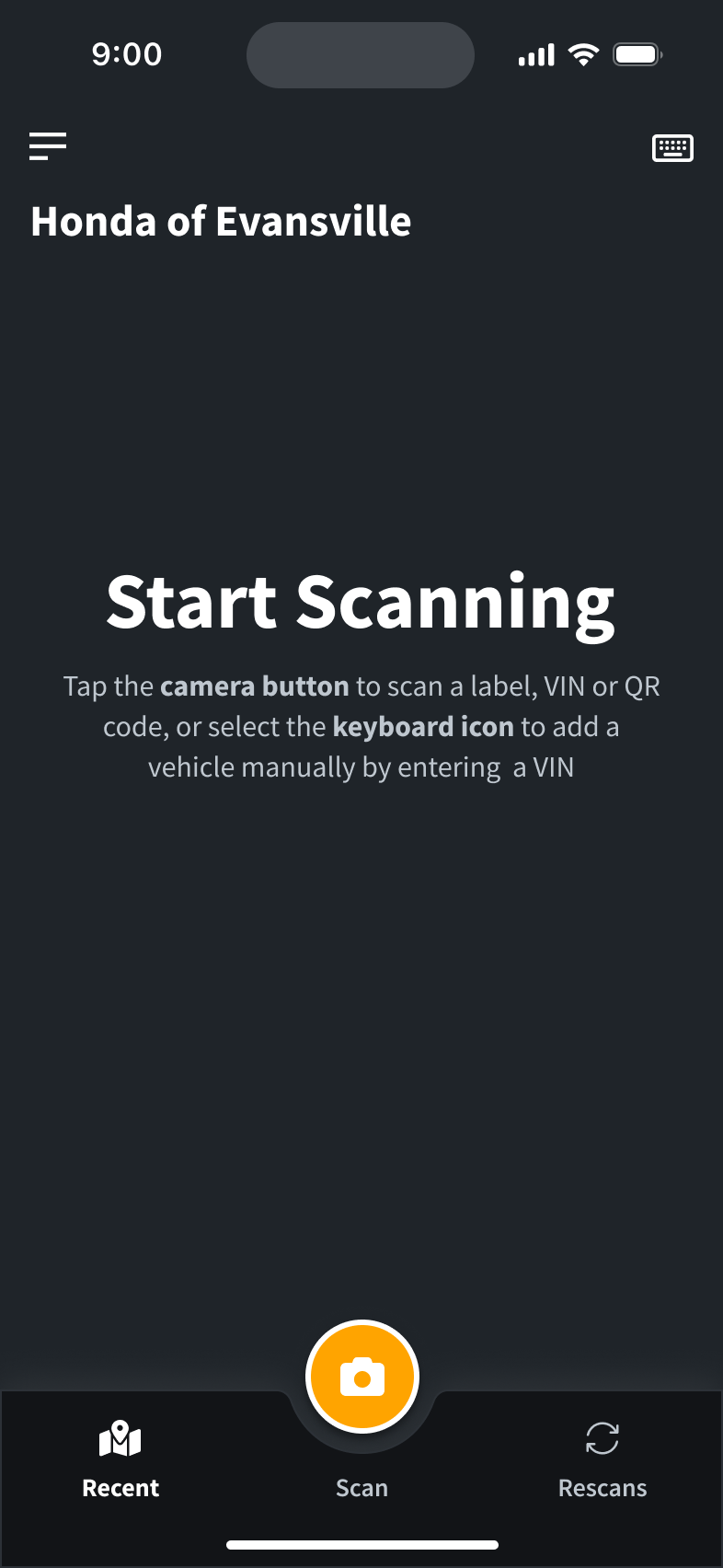
Tap the Camera button to start scanning.
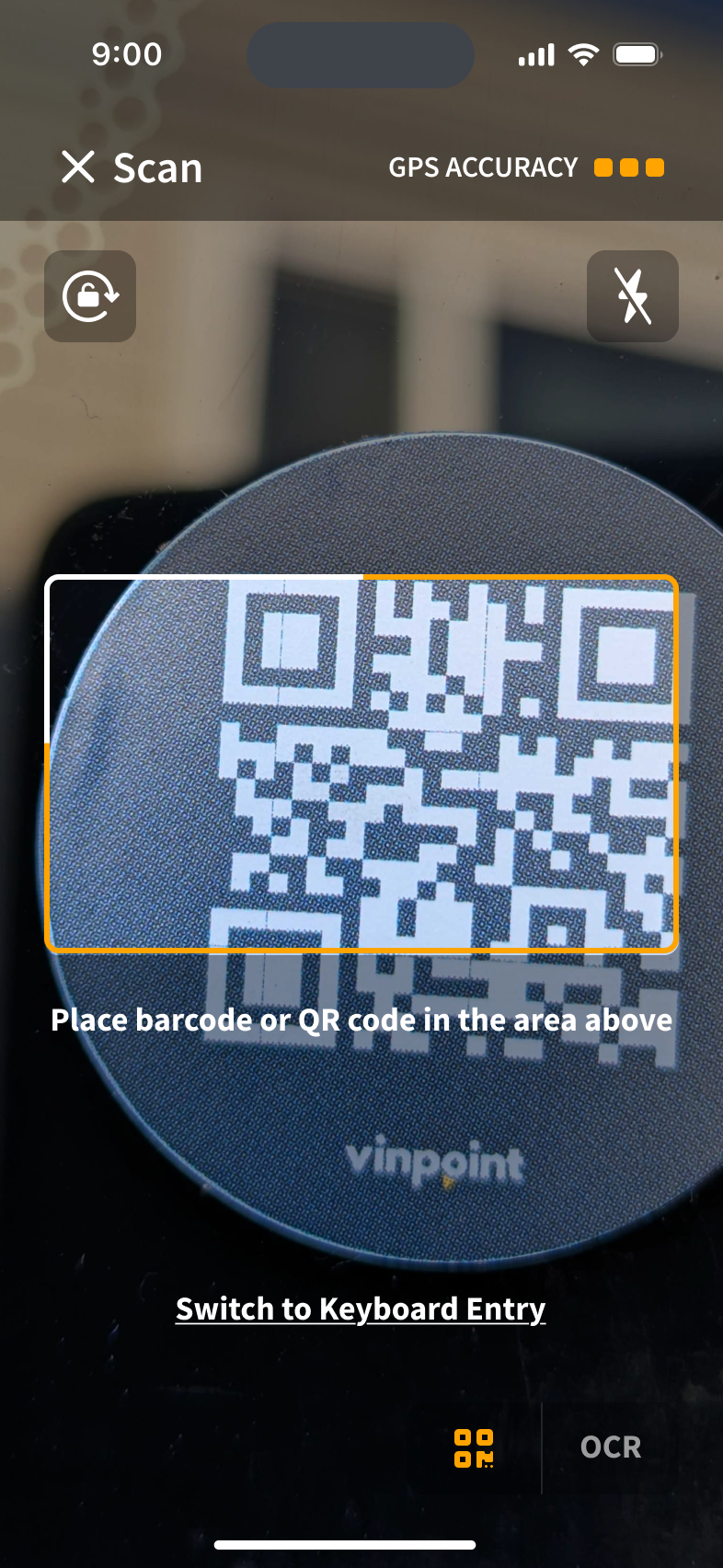
Align QR code inside the scan area to scan the ICQR label.
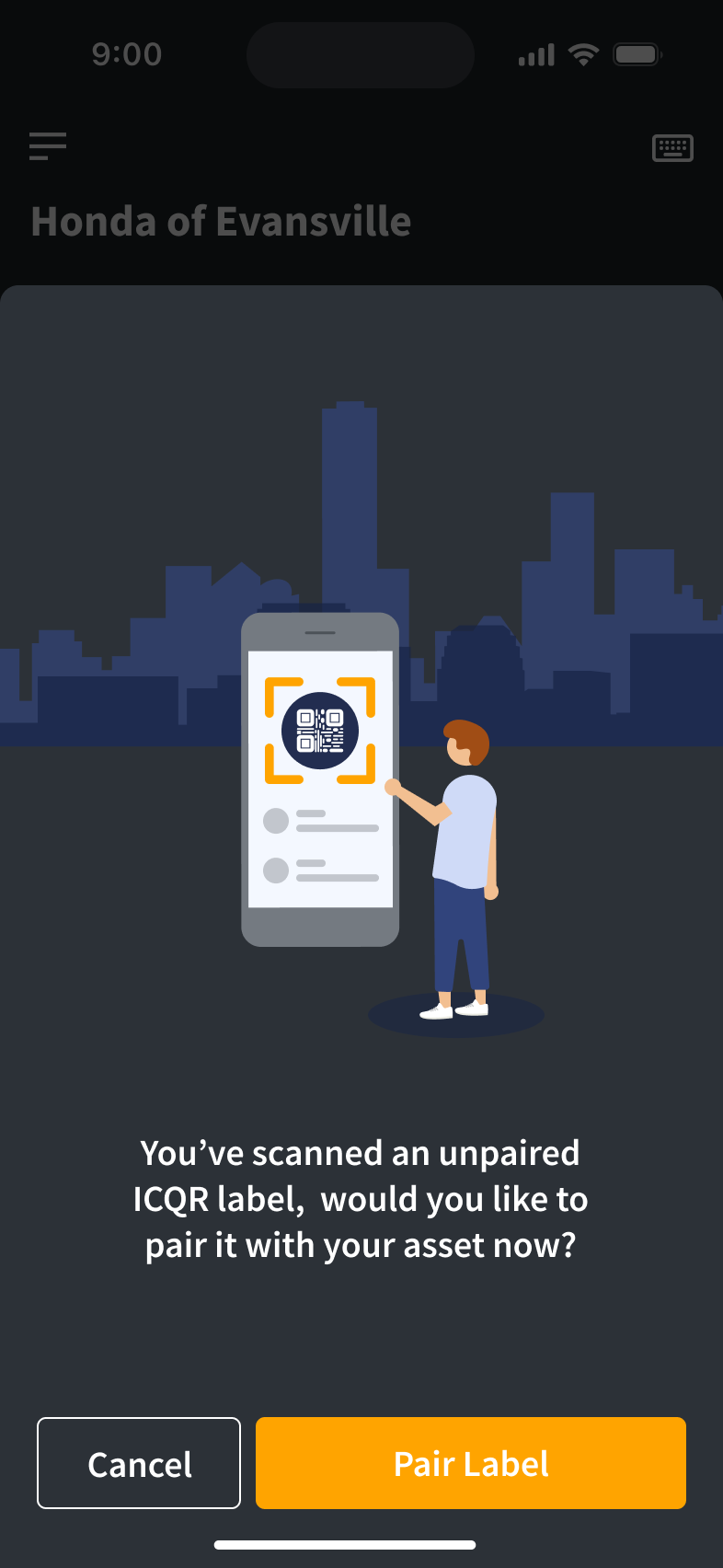
Once you have scanned the unpaired ICQR label, you can pair it with an asset or vehicle by pressing the Pair Label button.
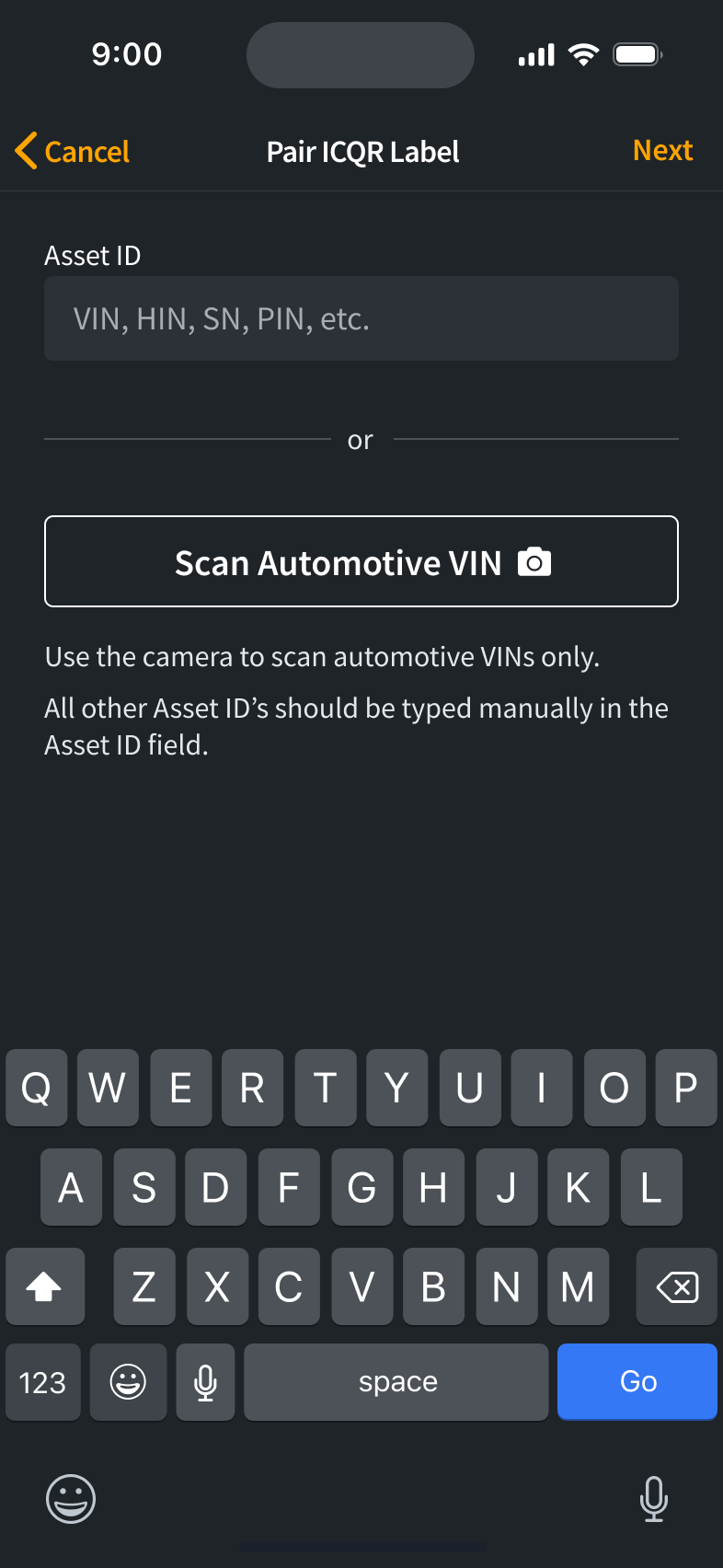
To pair the ICQR label with a vehicle, you can manually enter the VIN or you can scan the VIN by pressing the Scan Automotive VIN button.
To pair the ICQR label with an asset that does not have a VIN, manually enter the Asset ID. Please note, you can only use the camera to scan automotive VINs.
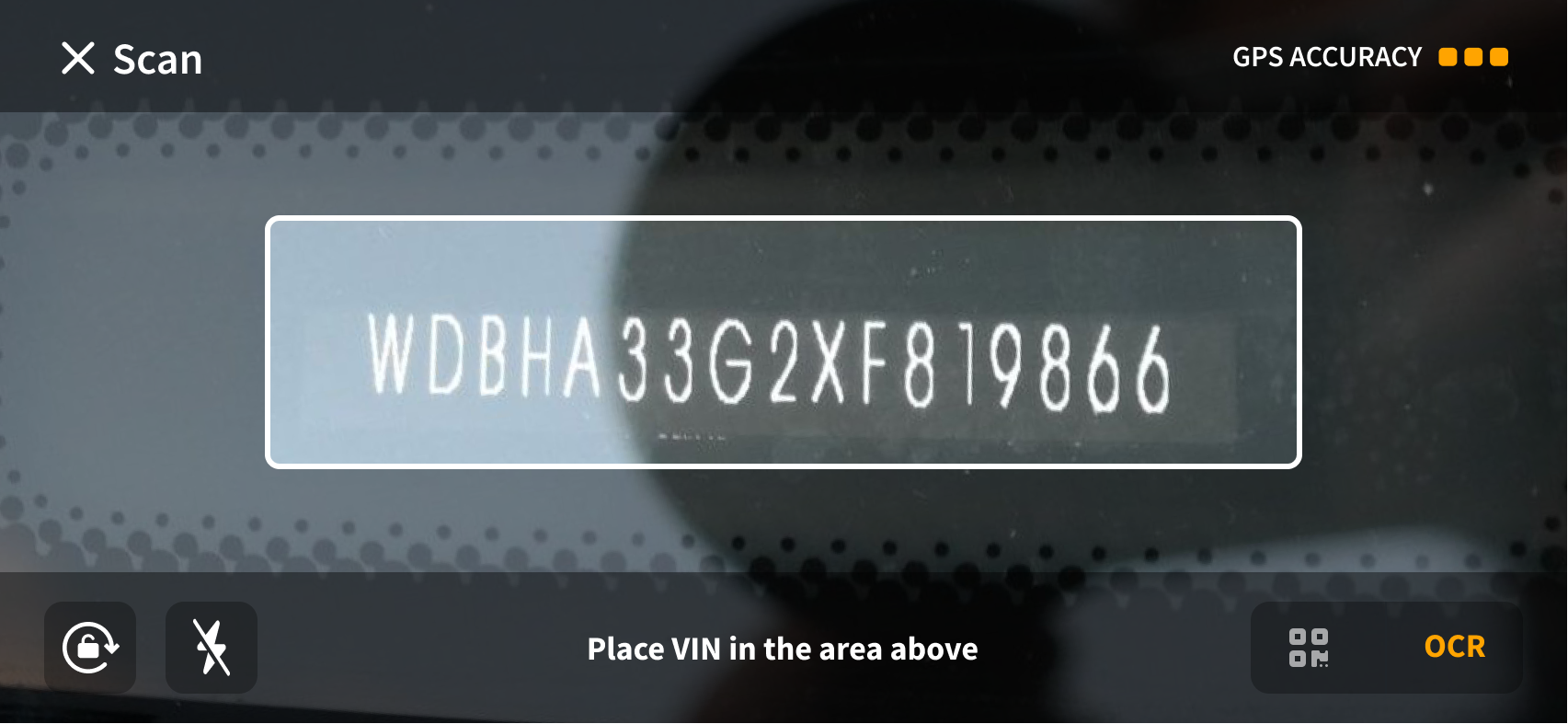
You may need to rotate your phone to use OCR to read VIN characters.
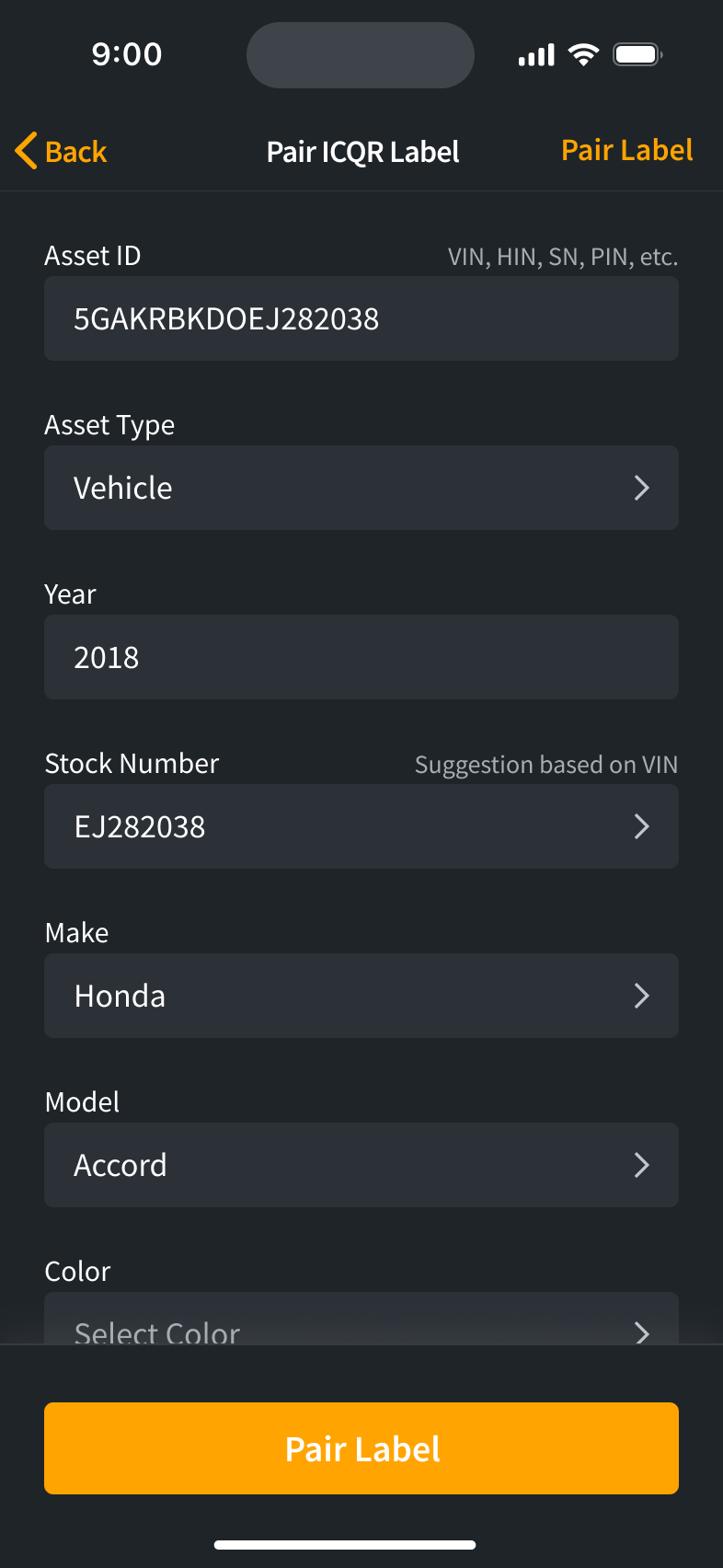
Once the VIN is scanned, the vehicle data will automatically populate. You can also enter vehicle data manually as needed.
If you've entered an Asset ID that is not a VIN, you will have to select the asset type and optionally enter additional data.
To finish pairing the ICQR label with the vehicle or other asset, press the Pair Label button.
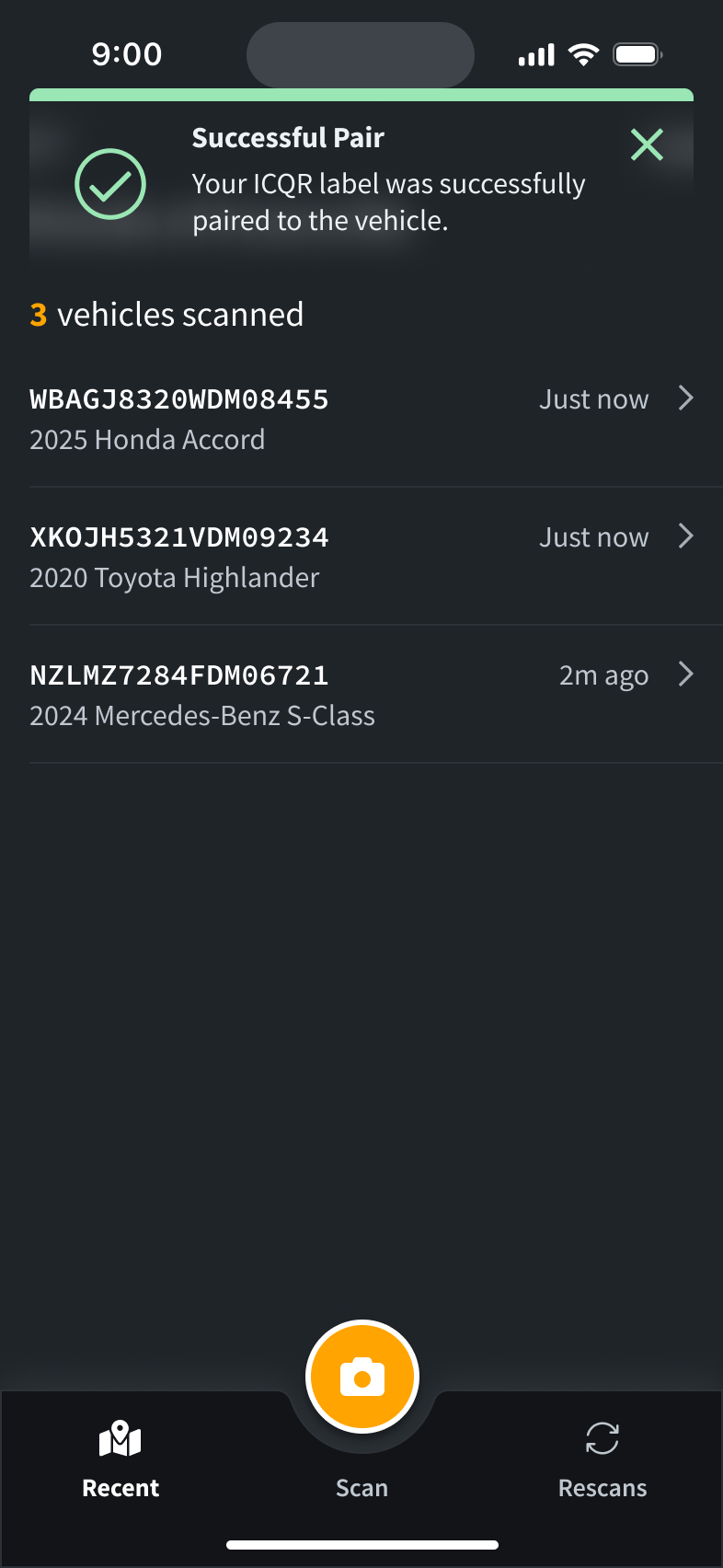
Once the ICQR label is successfully paired, a notification will appear.
Was this article helpful?
That’s Great!
Thank you for your feedback
Sorry! We couldn't be helpful
Thank you for your feedback
Feedback sent
We appreciate your effort and will try to fix the article