TABLE OF CONTENTS
How to Scan
Tap the Camera button to scan a label, VIN or QR code.
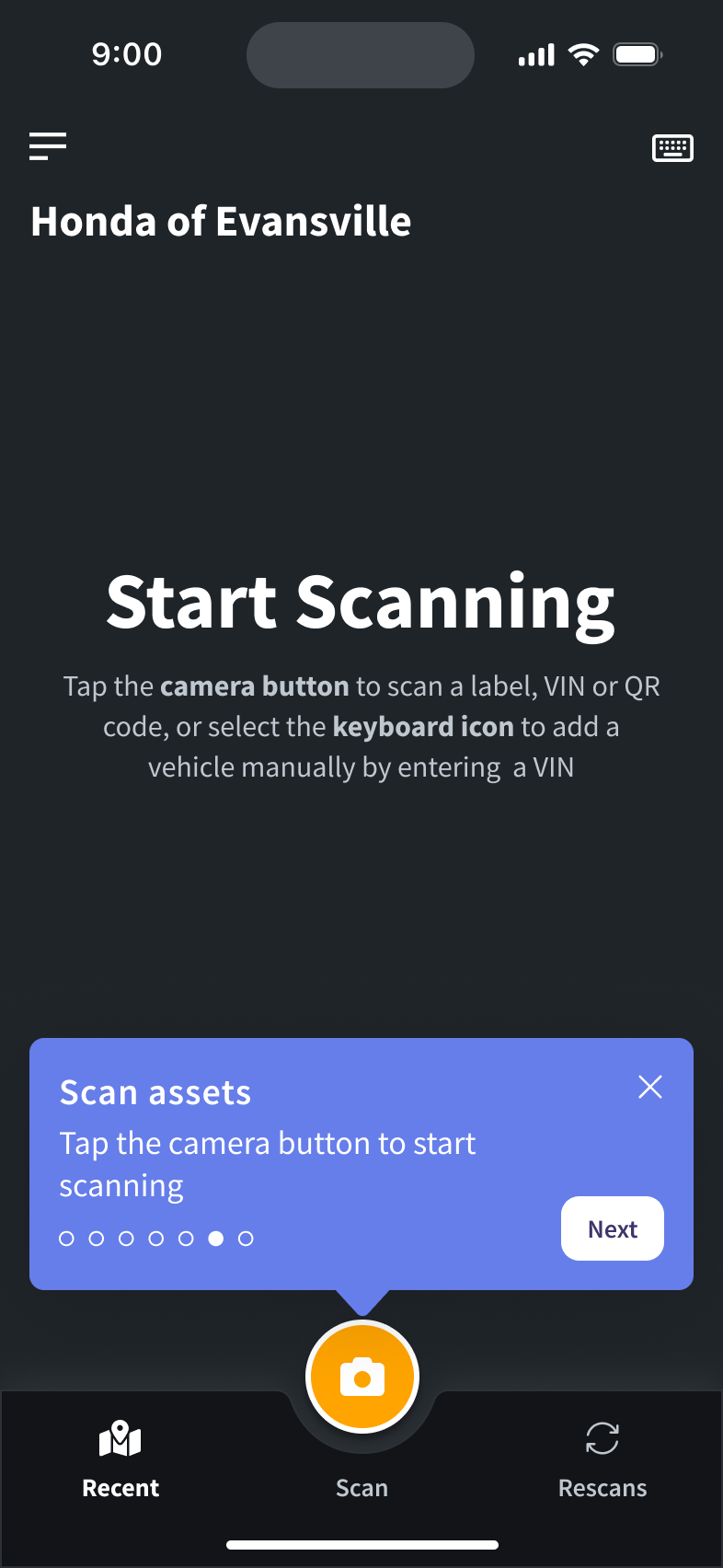
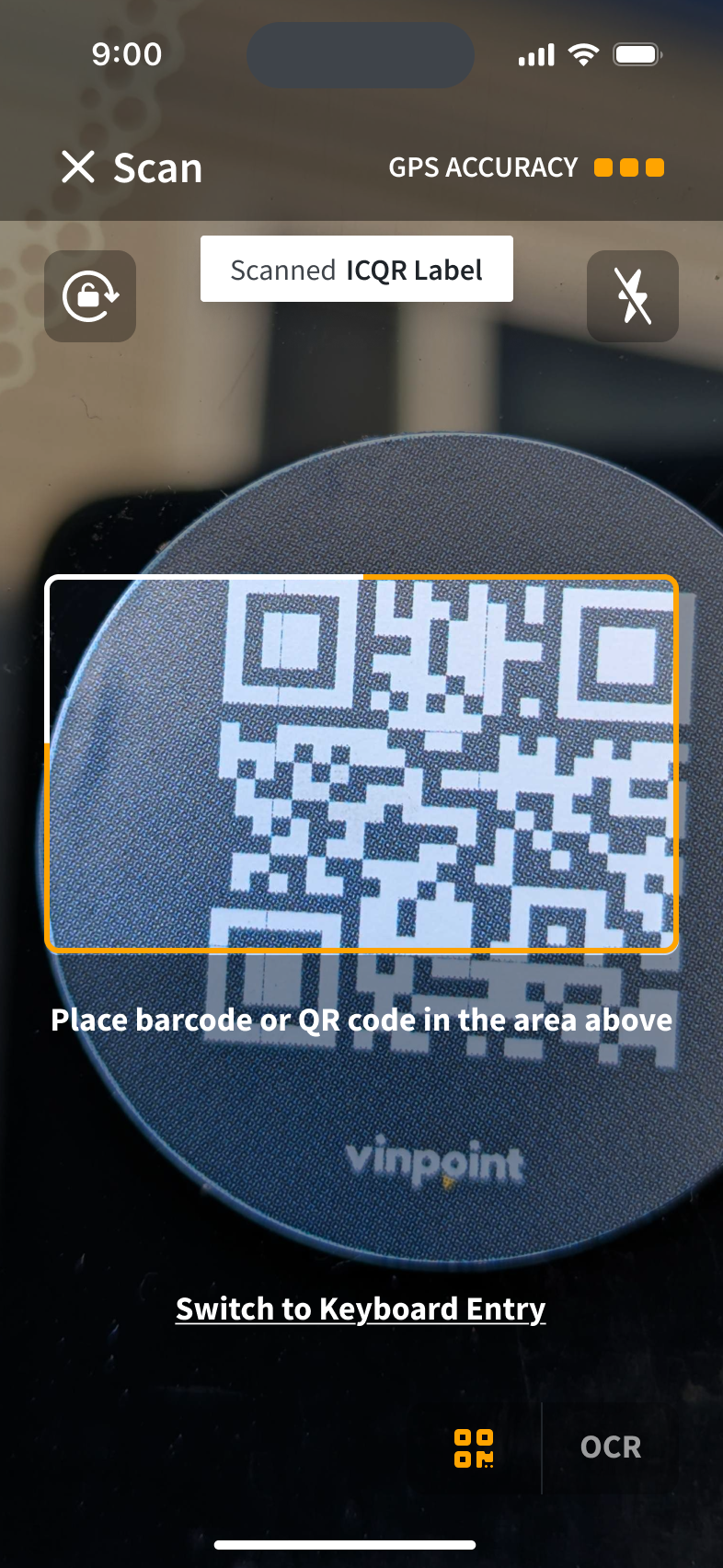
Align the barcode or QR code inside the scan area.
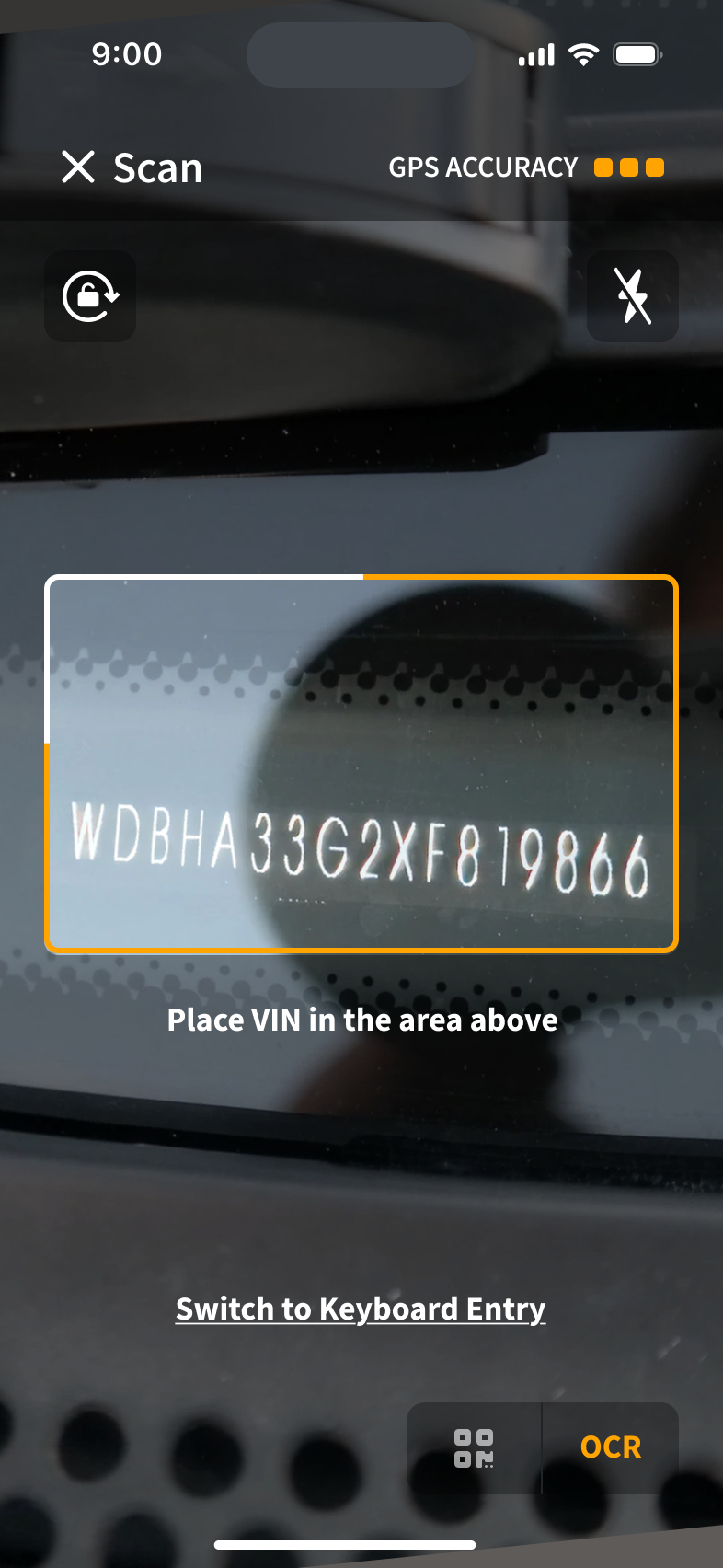
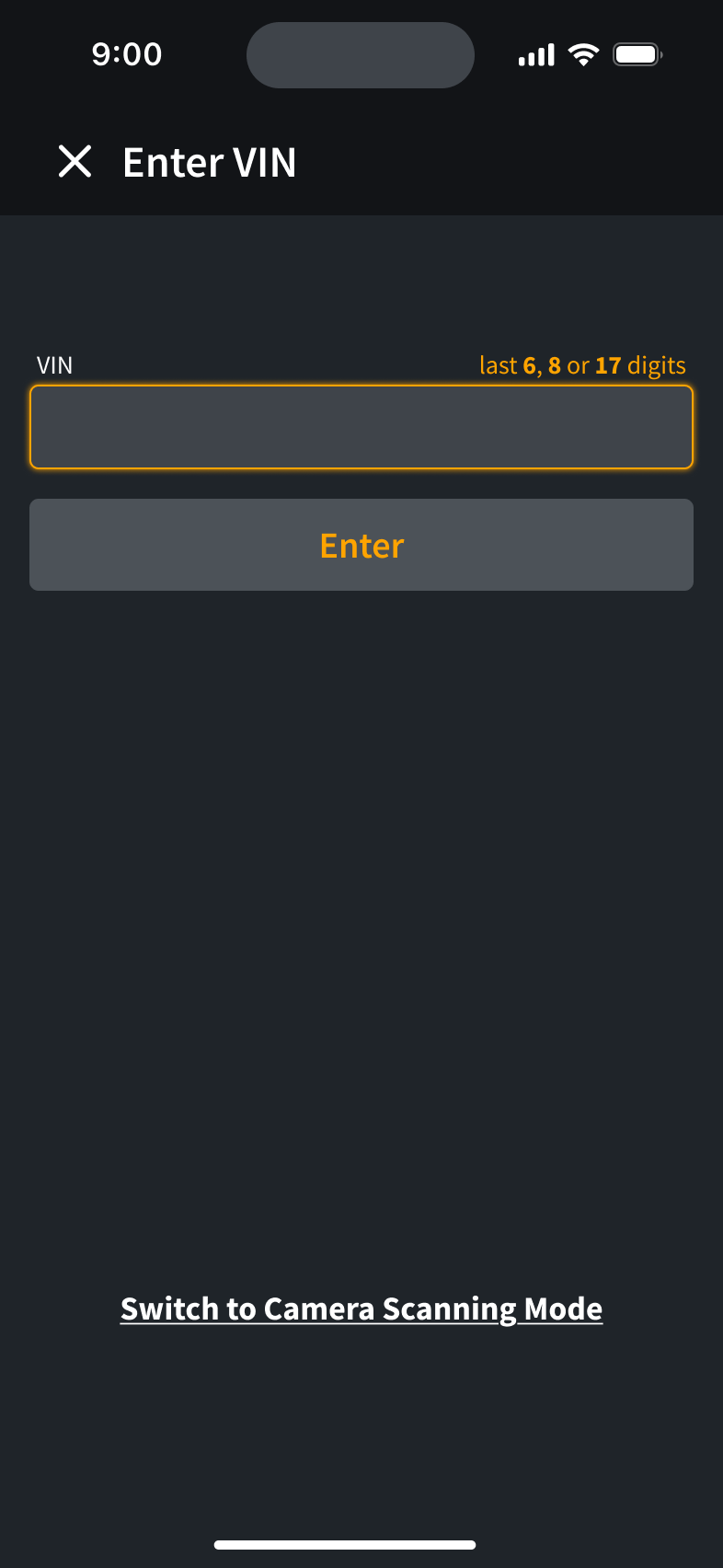
Tap the Keyboard Icon to enter a VIN without scanning.
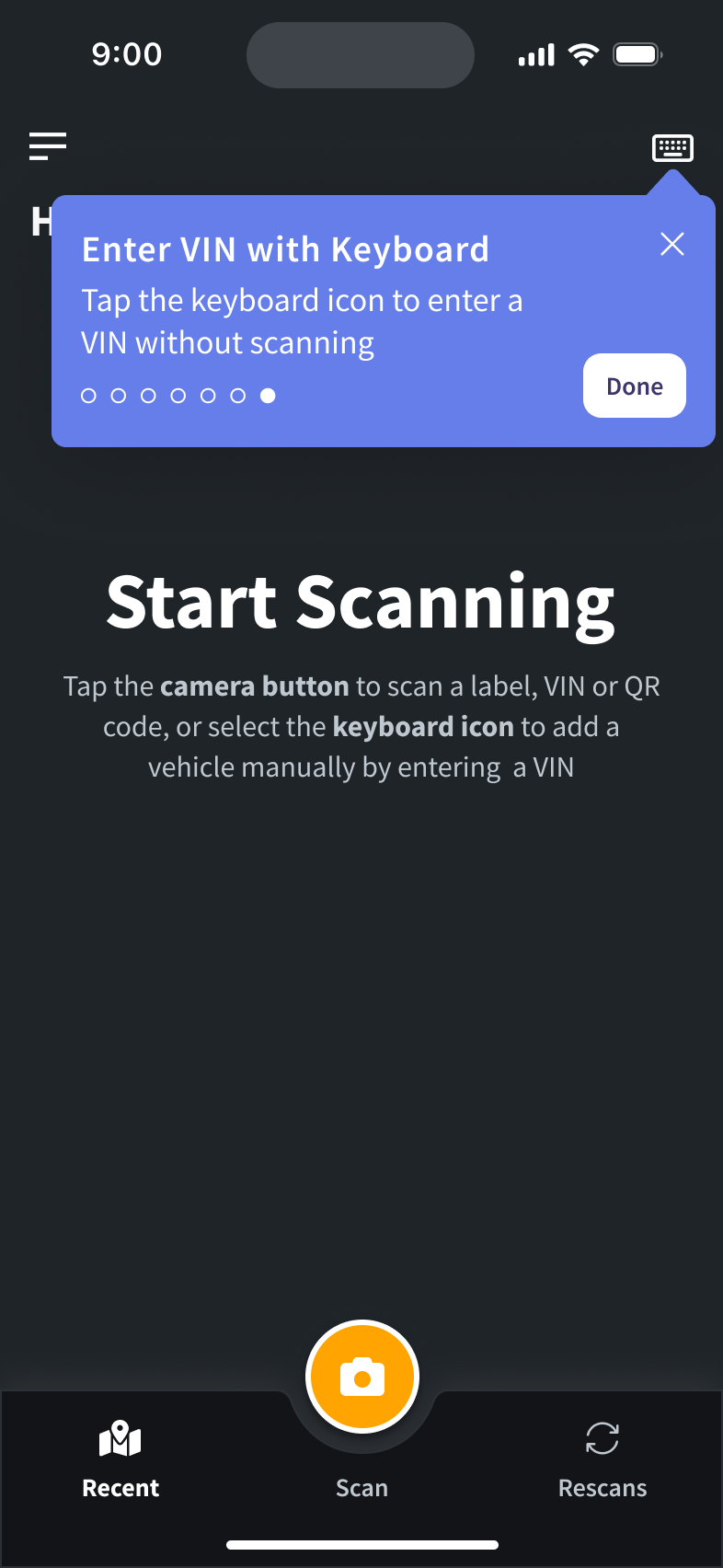
Type in the last 6, 8 or 17 digits of the VIN and press Enter.
Viewing Scan History
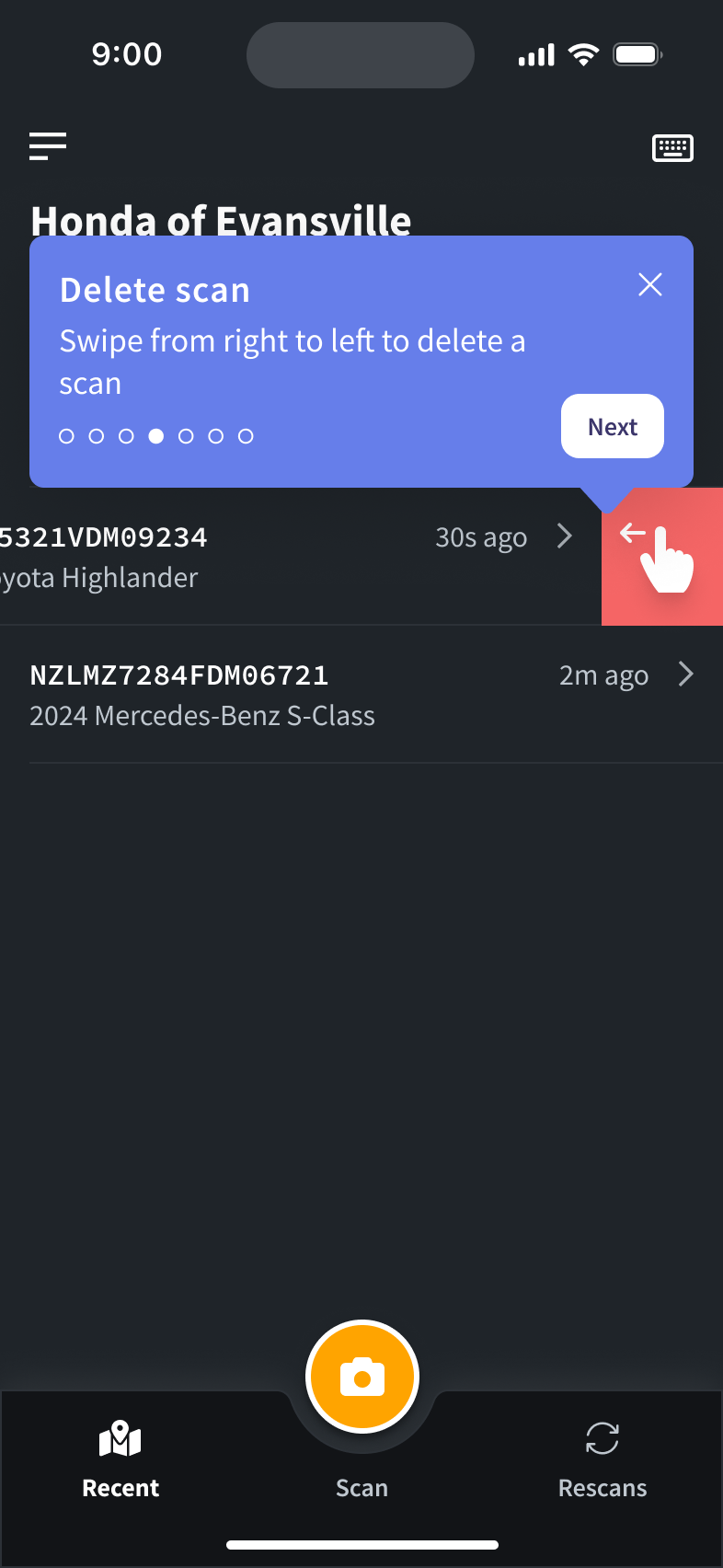
To view scans from the last 24 hours press the Recent tab.
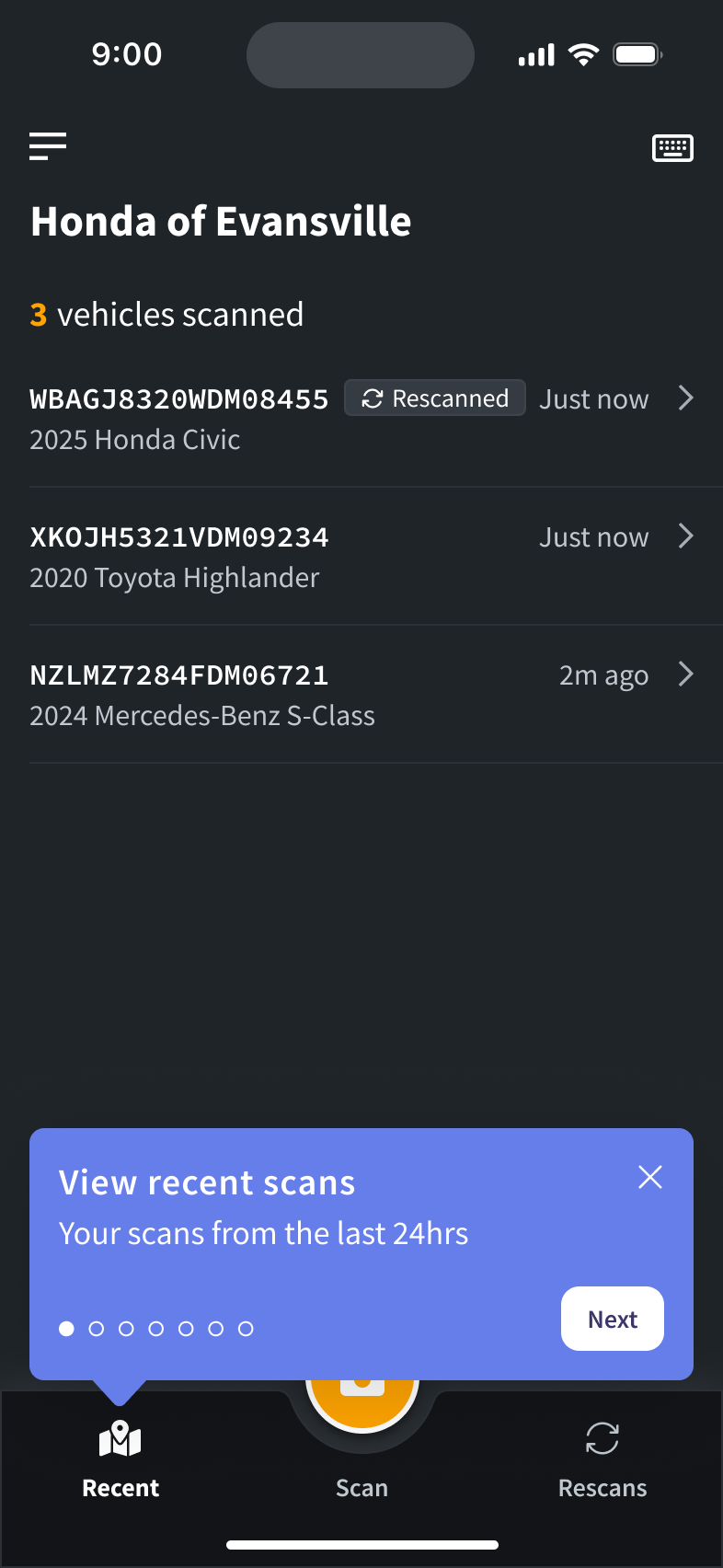
A rescanned label indicates this vehicle has been scanned from the rescan list.
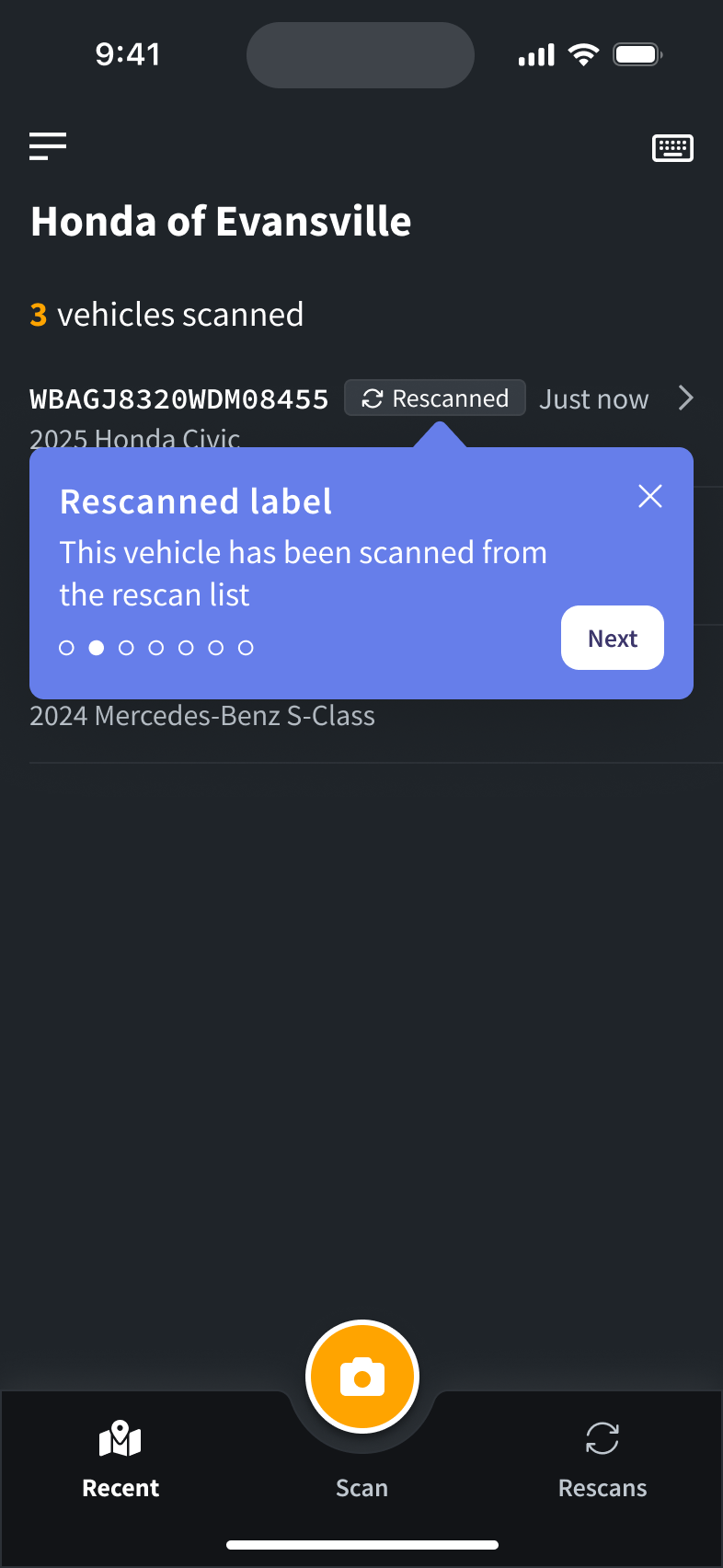
A syncing label indicates this scan is uploading and has not yet synced with the server.
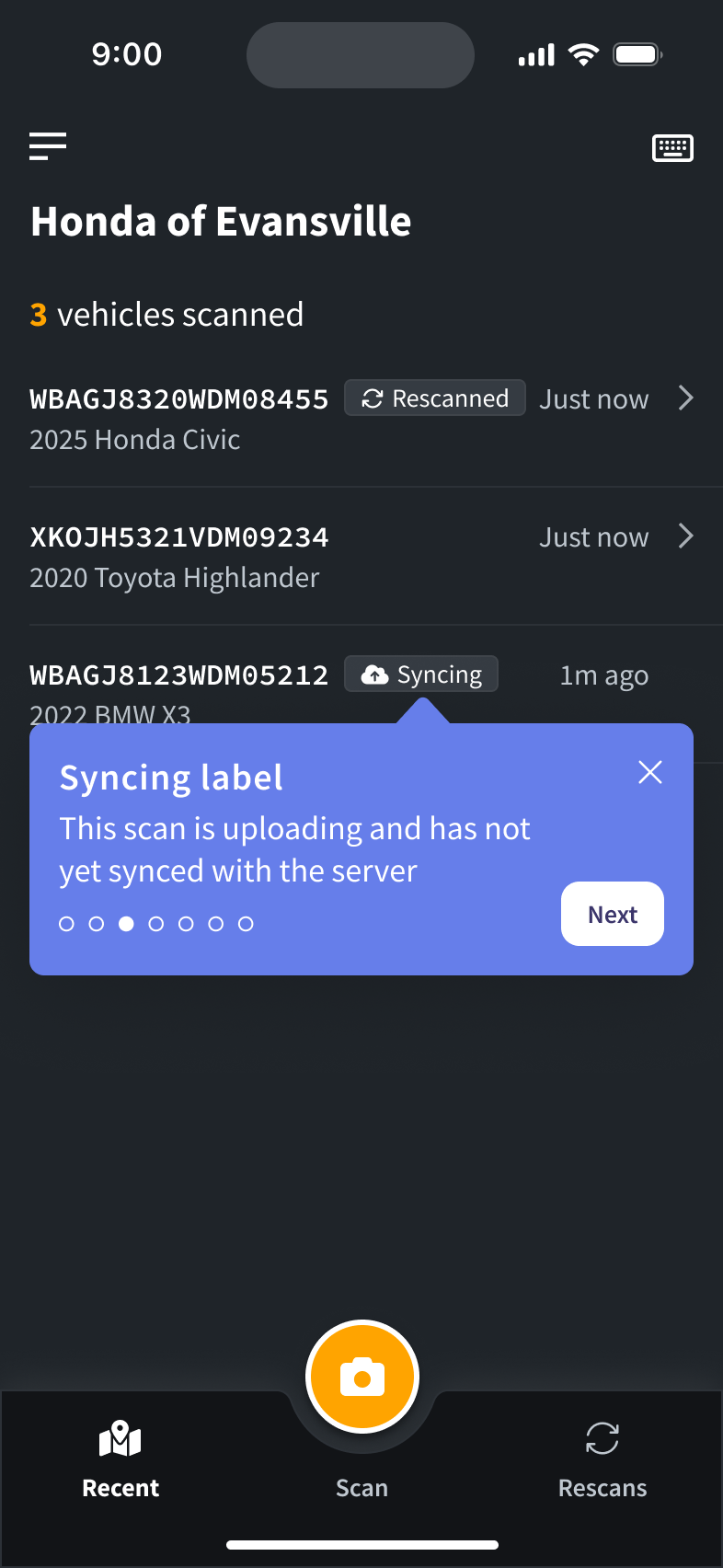
To delete a recent scan, swipe from right to left on the scan you would like to delete.
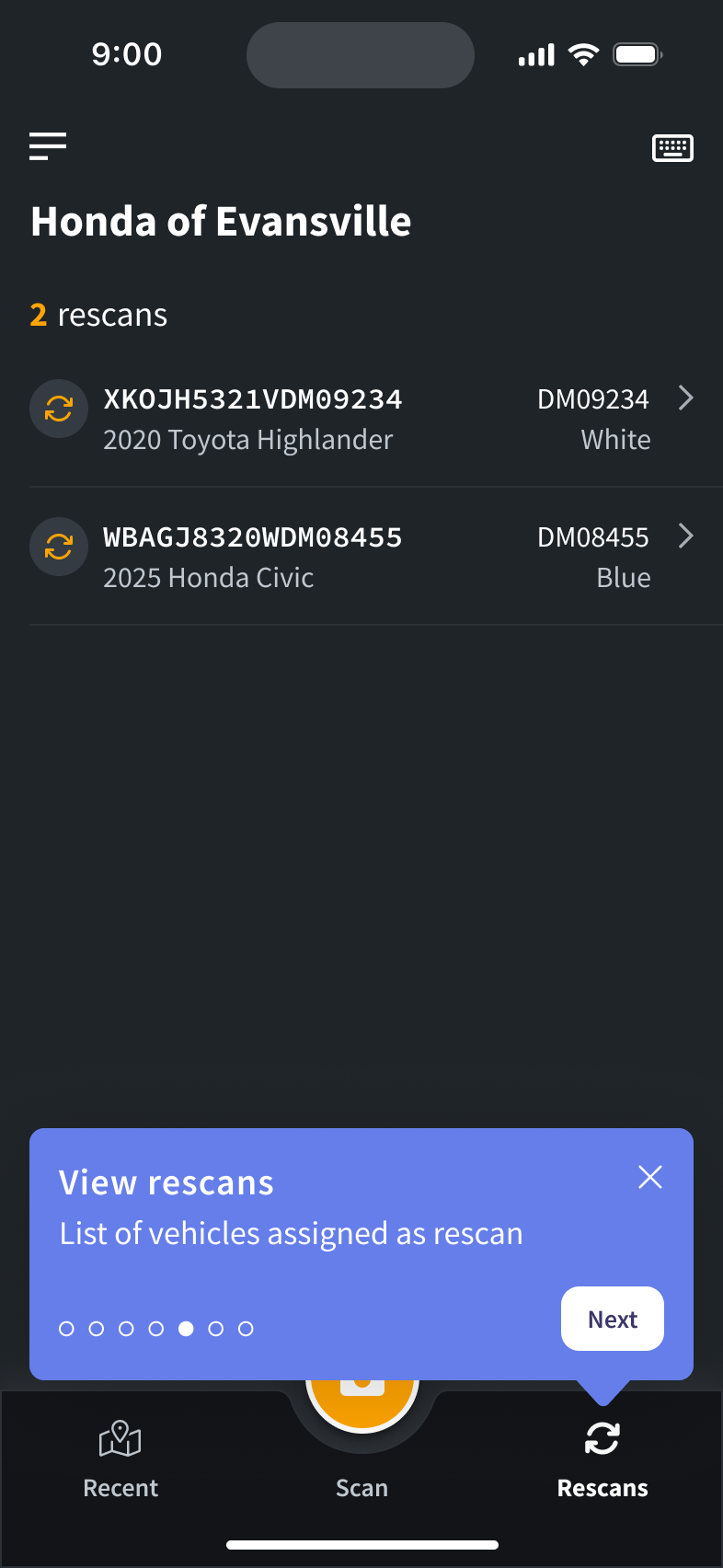
To view a list of vehicles assigned as rescan, press the Rescans tab.
Was this article helpful?
That’s Great!
Thank you for your feedback
Sorry! We couldn't be helpful
Thank you for your feedback
Feedback sent
We appreciate your effort and will try to fix the article