TABLE OF CONTENTS
- Dealership and summary numbers
- Activity over Time
- Scanner Leaderboard
- Daily Scans – Delta View
- Lot Activity – Heat Map
The Insights dashboard gives you a view of activity at your dealership: a summary of your inventory, scanning and labeling activity over time, your most active scanners, and where activity happens on your lot. To open it, click Insights at the top of the page.
The numbers on the dashboard aren't updated live. To refresh them, reload the page or change any time range.
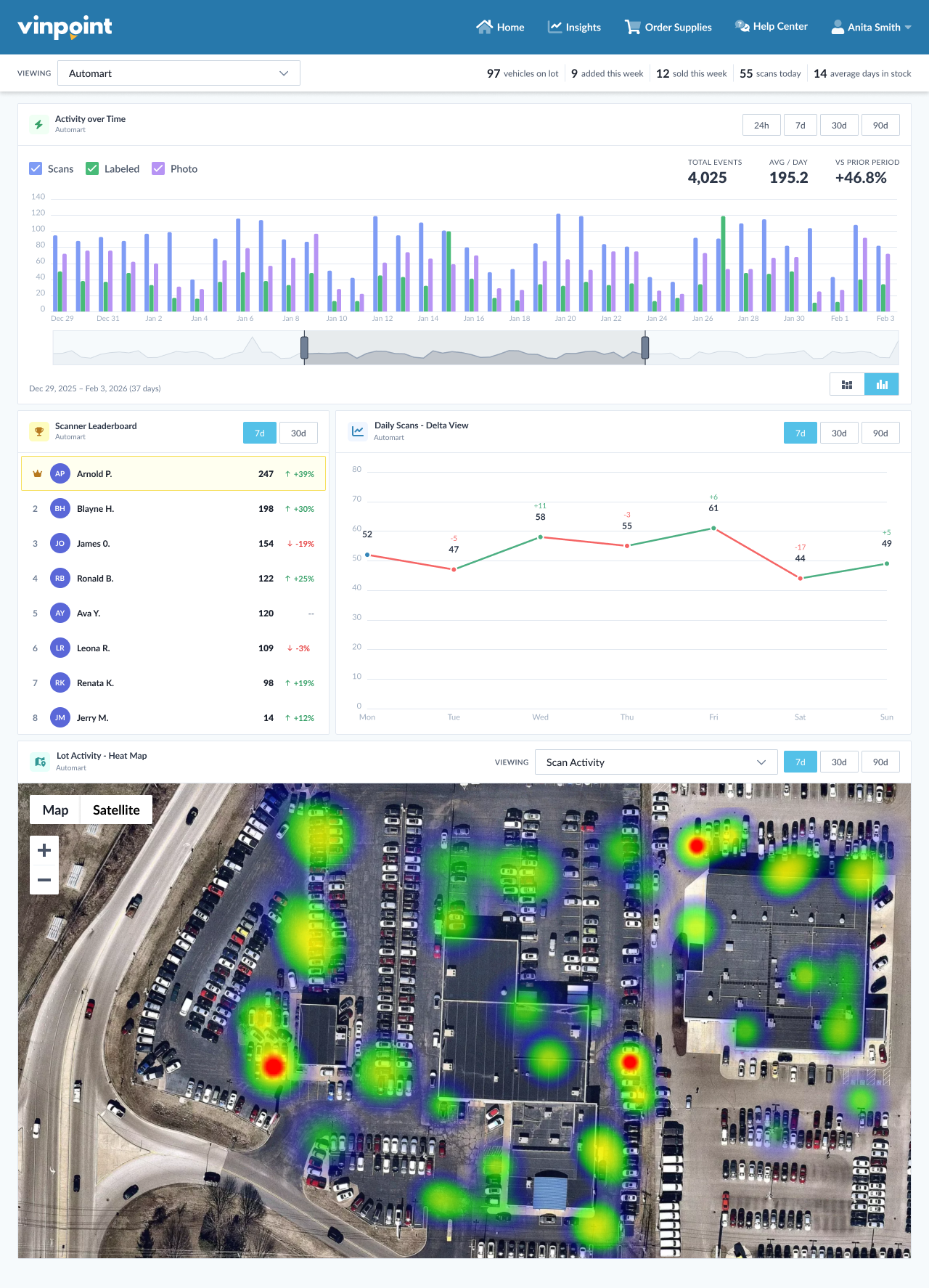
Dealership and summary numbers
Use the Viewing dropdown to choose a dealership. It lists the dealerships you have access to, and you can type to search. Everything on the dashboard updates to show that dealership's data.
Across the top, you'll see a quick summary of the selected dealership:
- Vehicles on lot: the number of vehicles currently in your inventory.
- Added this week: vehicles added to your inventory since Monday.
- Sold this week or Removed this week: vehicles that left your inventory since Monday. Which label you see depends on your dealership's setup.
- Scans today: the number of vehicle scans today.
- Average days in stock: the average number of days the vehicles currently on your lot have been in stock.
These numbers aren't affected by the time ranges you choose in the panels below.

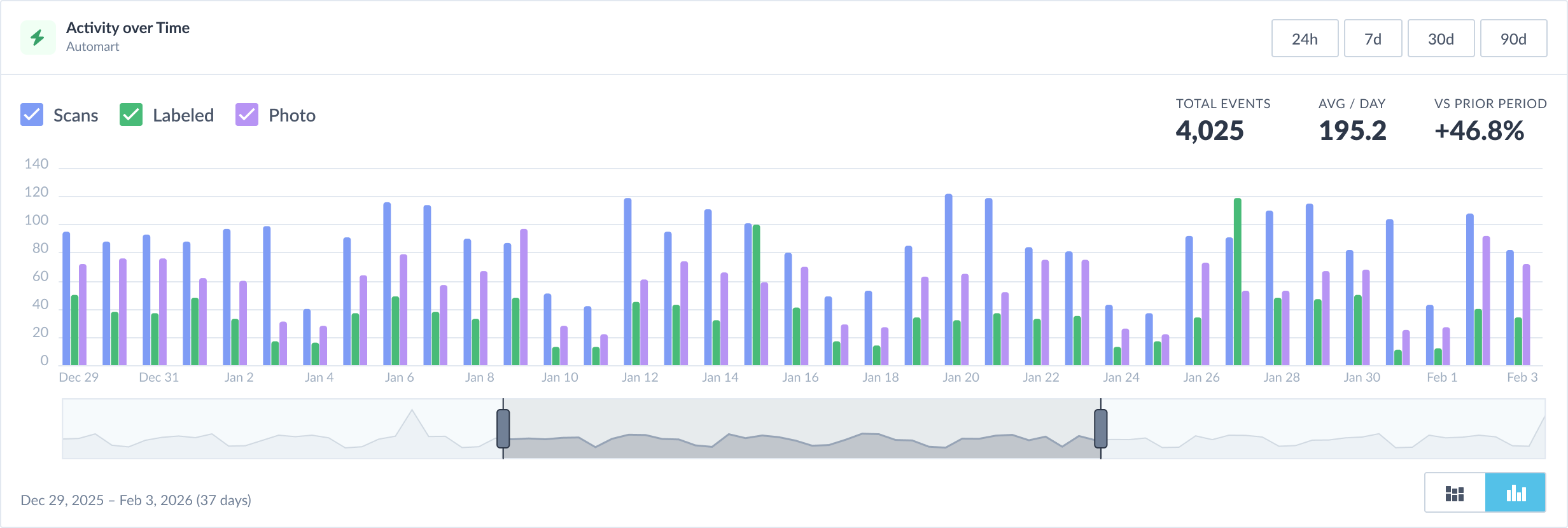
Activity over Time
This chart shows daily activity at your dealership, broken out into four types:
- Scans: vehicles scanned with Vinpoint Mobile.
- Labeled: labels printed for vehicles, and QR stickers paired with vehicles.
- Pairing: Shepherd vehicle trackers paired with vehicles.
- Photo: vehicle photos taken with Vinpoint Mobile.
Use the checkboxes at the top left to show or hide each activity type.
To change the time range, choose 24h, 7d, 30d, or 90d. For a custom range, drag the handles on the slider below the chart to narrow or widen it, or drag the selected area to move through time. The dates you're viewing appear below the slider.
Metrics summarizing the range and activity types you're viewing:
- Total Events: all activity in the selected range.
- Avg / Day: the average number of events per day.
- VS Prior Period: how this range compares with the same length of time just before it. If there was no activity in that earlier period, this figure is blank.
Hover over any day to see a breakdown by activity type. To switch the chart style, use the buttons at the bottom right to choose stacked view (all activity types in one bar per day) or side-by-side view (a separate bar for each activity type).
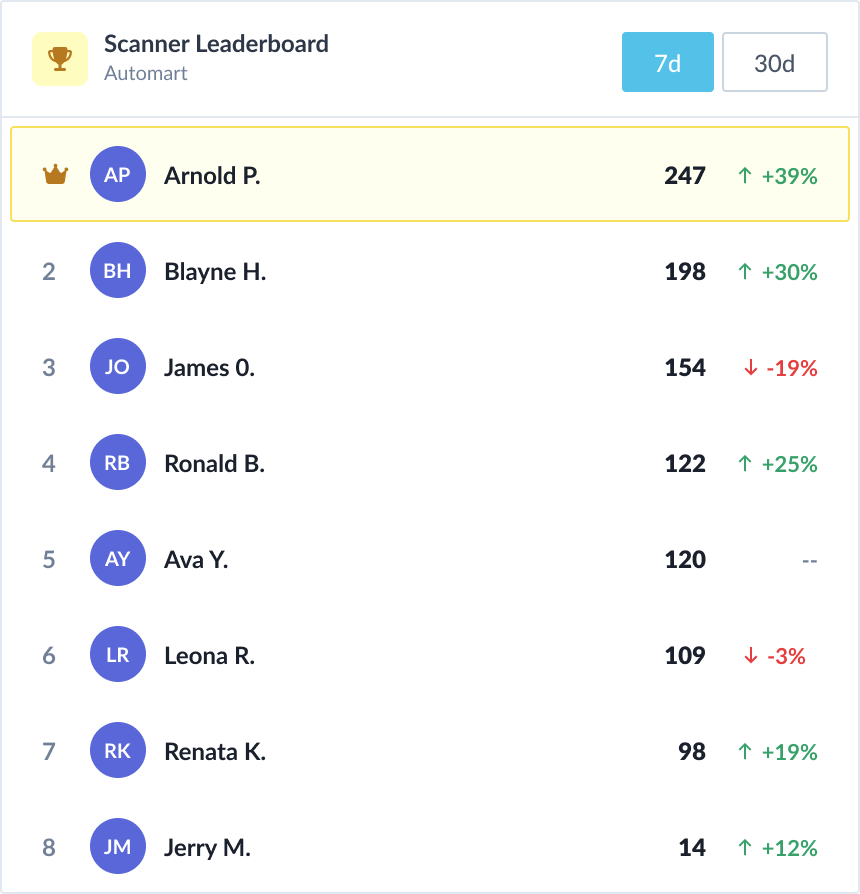
Scanner Leaderboard
The Scanner Leaderboard ranks the top 10 people who scanned the most vehicles at your dealership. A dash in place of a percentage means there's no earlier activity to compare, or no change.
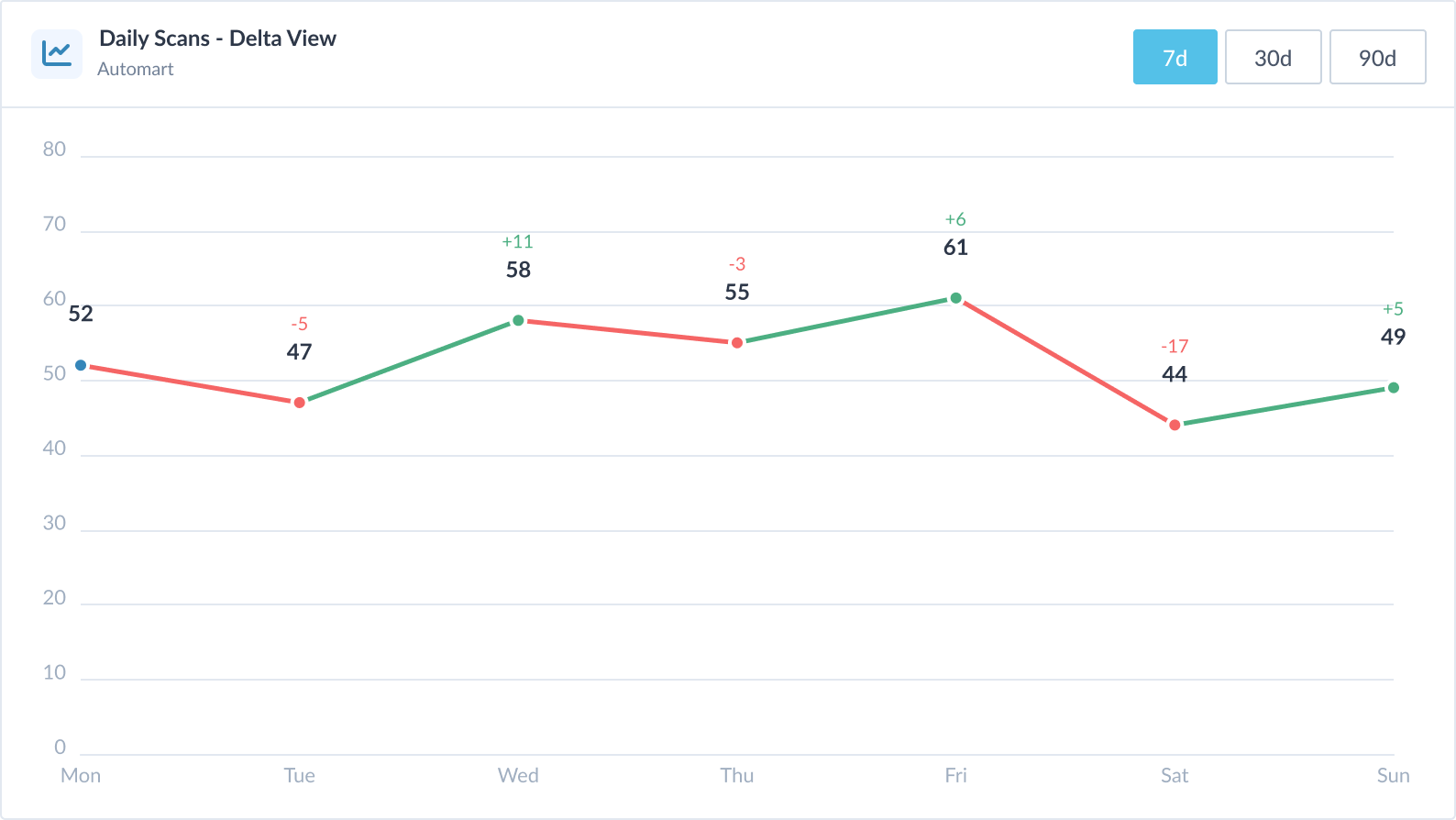
Daily Scans – Delta View
This chart shows the number of scans each day, with the change from the previous day labeled above each point. Green lines show an increase, and red lines show a decrease.
Hover over any day to see its scan count and the change from the day before.
Lot Activity – Heat Map
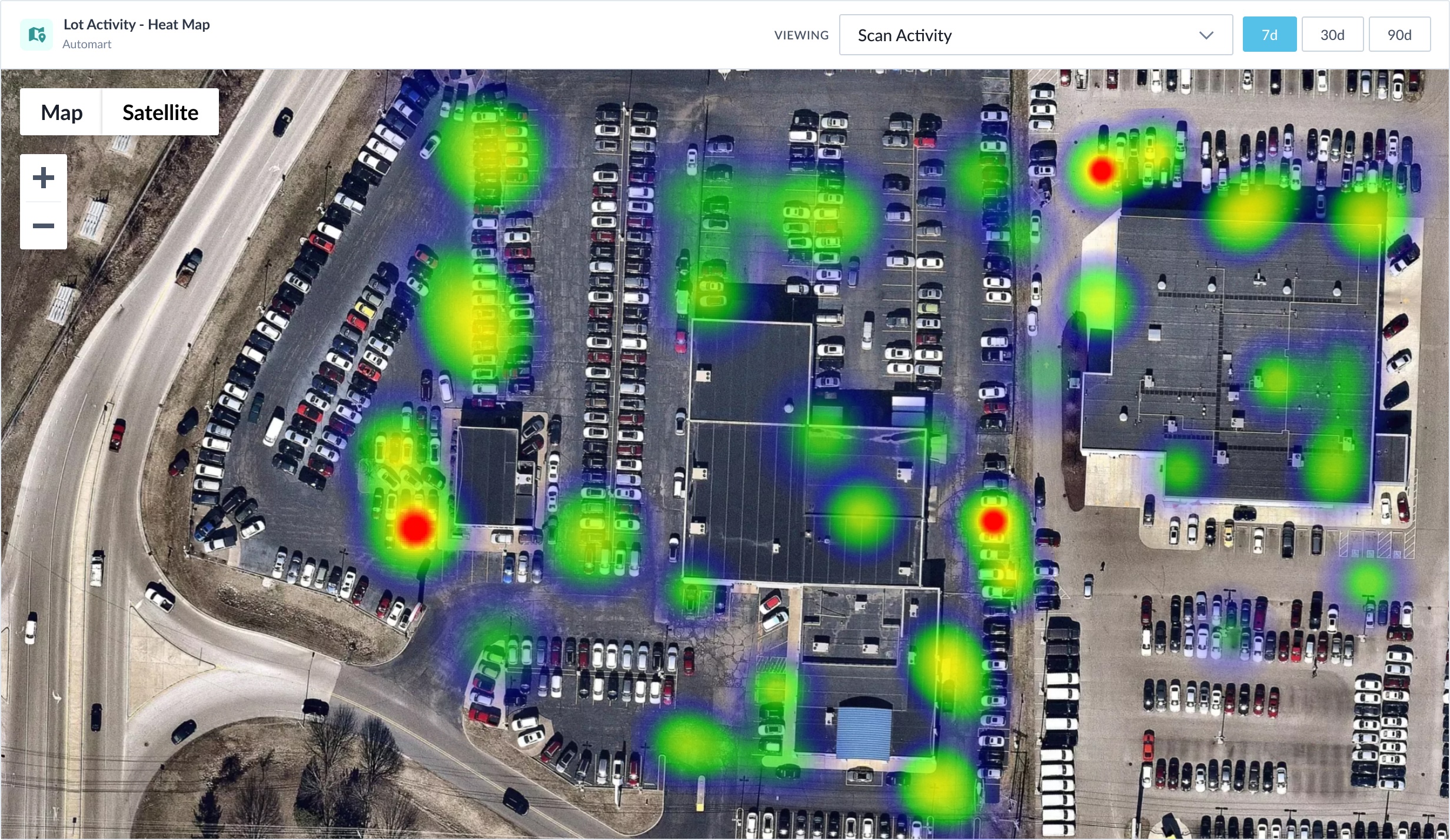
The heat map shows where activity is concentrated on your lot. Warmer colors (yellow, orange, and red) mark the busiest areas, and cooler colors (blue and green) mark areas with less activity.
Use the Viewing dropdown at the top of the panel to choose what the map shows:
- Scan Activity: where vehicles have been scanned.
- Inventory Density: where vehicles are currently located on the lot.
- Stale Vehicles: where vehicles that haven't been scanned in more than 7 days are located.
For Scan Activity, choose 7d, 30d, or 90d to change the time range. Inventory Density and Stale Vehicles show where vehicles are now, so they don't have a time range.
Use Map and Satellite to switch views, the + and – buttons to zoom, and drag to move around the map.
Was this article helpful?
That’s Great!
Thank you for your feedback
Sorry! We couldn't be helpful
Thank you for your feedback
Feedback sent
We appreciate your effort and will try to fix the article